

Before you start, make sure you have:
- An assistant created on the platform
- Your embed script copied from the assistant’s Publish area
- Admin access to your WordPress site
Add the script to your site
1
Copy your embed script
Open your assistant on the platform, go to its Publish area, and copy the script. It already contains your 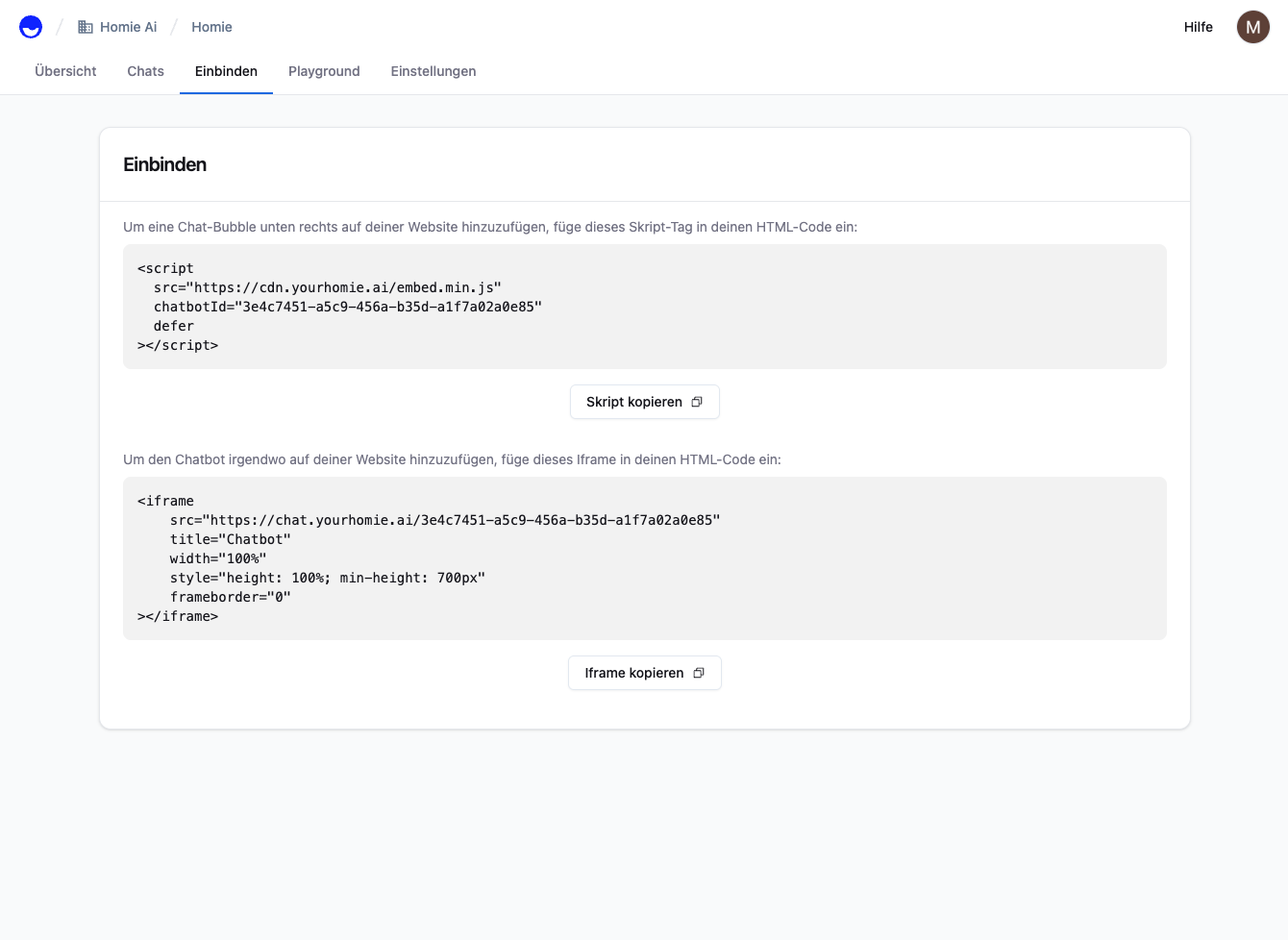
chatbotId.2
Choose how to add it
- Plugin (recommended)
- Custom HTML block
Install a plugin such as Insert Headers and Footers (or WPCode), open its settings, and paste the script into the Footer / Body section:Save. The plugin injects the script on every page.
3
Save and refresh
Save your changes and reload your site.
Refresh your site. The homie chat bubble appears in the bottom-right corner. Open it and send a test message.
Troubleshooting
- No bubble showing? Clear any caching plugin and your browser cache, then try an incognito window.
- Script stripped out? Some editors sanitize
<script>tags — use a header/footer plugin instead.
Next steps
Client API
Configure the widget and call methods from your site.
Installation overview
Compare install methods for every platform.