

The languages you can translate come from your assistant’s active languages. Set the default language in General settings.
Manage translations
1
Open Translations
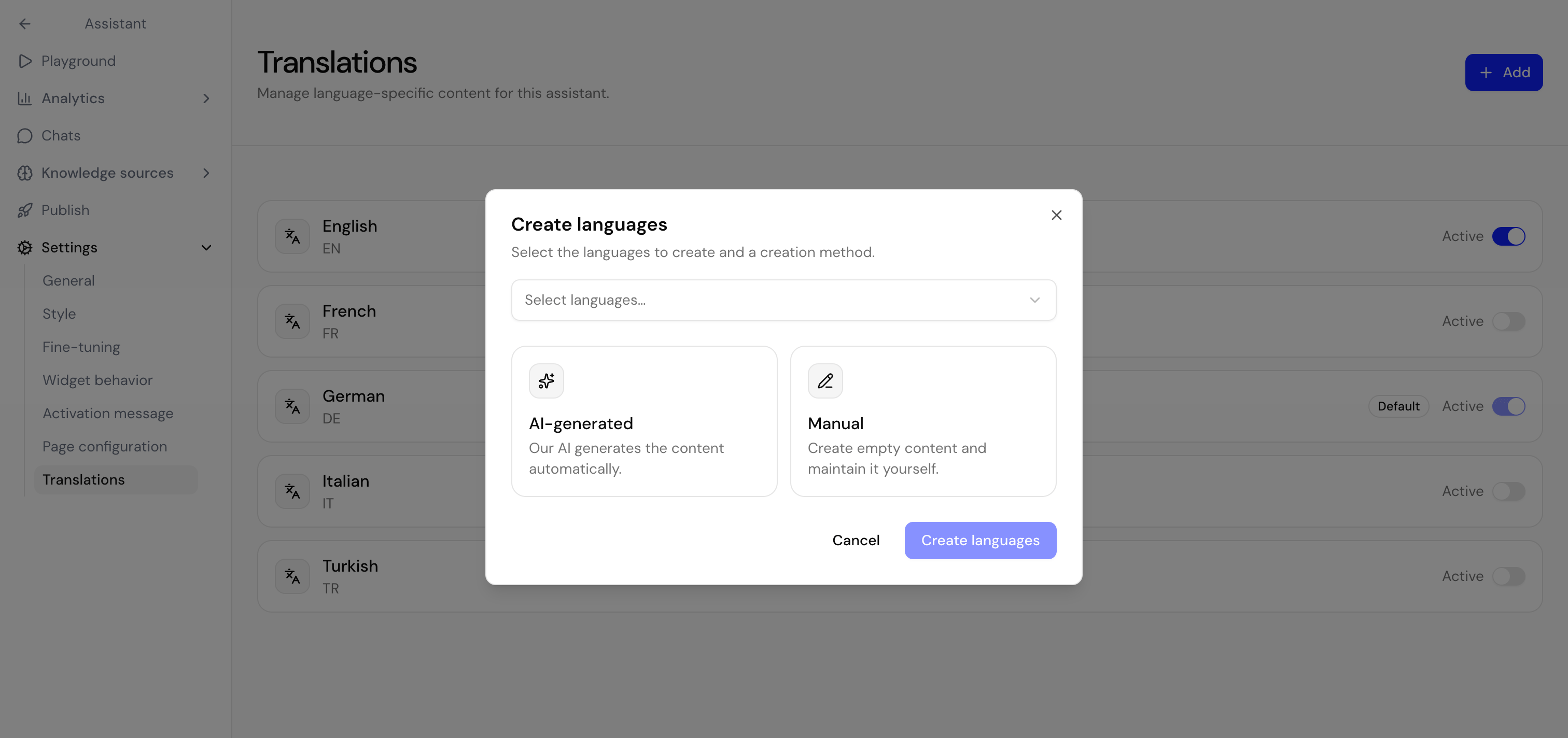
Go to Assistants in the homie platform, select your assistant, and open Settings → Translations.
2
Select a language
Choose one of your active languages to edit its interface strings or add a new language. Using AI-generated translation makes it easier for you to create new languages.
3
Edit the strings
Update the text for each interface area so it reads naturally in that language.
4
Save
Save your changes to apply them to the live widget.
What you can translate
Next steps
Set the default language
Control the fallback language for your assistant.
Customize per page
Localize page-specific labels and messages.