

Open the Playground
1
Open your assistant
Go to Assistants in the homie platform and select the assistant you want to test.
2
Switch to the Playground
Open the Playground tab to start a fresh conversation with the assistant.
3
Send a message
Type a question the way a real shopper would and review how the assistant responds.
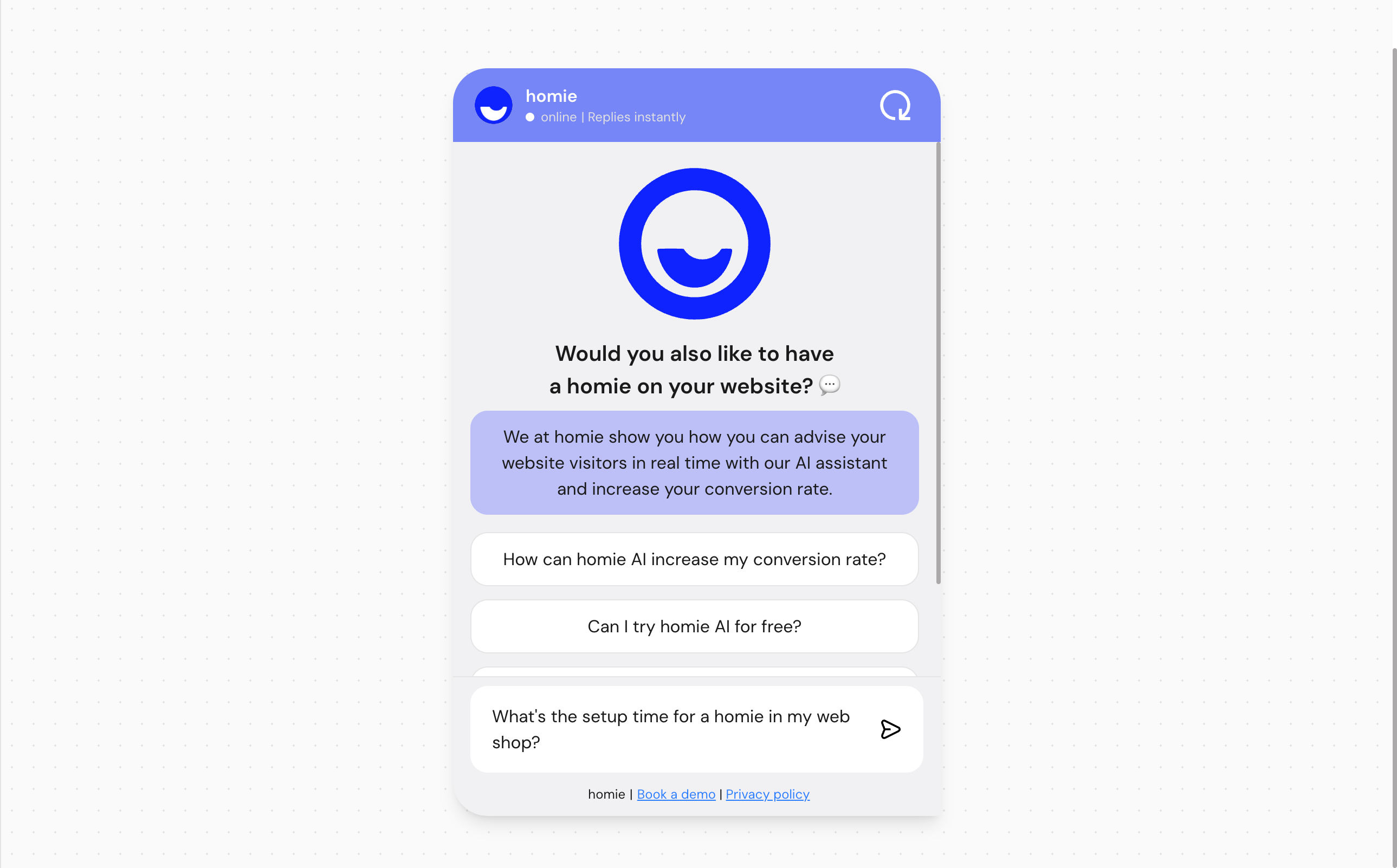
Simulate the environment
By default the Playground talks to the assistant with no page context. To test realistic scenarios, select Simulate environment in the top-right corner to open the Test parameters dialog and adjust:- Simulate website — a page URL (for example
https://example.com/product/123). The assistant responds as if it were opened on that specific page, so you can test page- and product-aware answers. - Store ID — for multi-location stores, simulate location-specific responses for a given store (for example
store-berlin-001). - Language — override the language used in the Playground. By default it uses the assistant’s default language.
What to look for
When testing, pay attention to whether the assistant:- Answers questions accurately and stays on topic.
- Uses the right tone and personality for your brand.
- Recommends relevant products at the right moment.
- Handles questions it does not know gracefully, instead of inventing answers.
- Responds in the expected language.
The Playground reflects your saved configuration and current knowledge. If an answer looks wrong, check your knowledge sources and fine-tuning before publishing.
Next steps
Fine-tune responses
Adjust tone and product-recommendation behavior.
Add knowledge
Improve answers by expanding what your assistant knows.