

chatbotId — and paste it into your site so it loads on every page. The script is served from cdn.yourhomie.ai, is deferred, and stays lightweight on your page.
Shopify
Paste the script into your theme, or use the connected Shopify integration.
Google Tag Manager
Deploy the widget through a Custom HTML tag — no theme code needed.
Shopware
Add the script to your storefront theme or a CMS block.
WooCommerce
Use a theme footer, a header/footer plugin, or
functions.php.Magento
Add the script via layout XML or the footer miscellaneous HTML setting.
WordPress
Add the script via a footer, a header/footer plugin, or a Custom HTML block.
Manual
The universal method — works on any site that lets you edit HTML.
How installation works
Every install method does the same thing: it places the homie embed script on your storefront so the chat bubble loads for your shoppers.1
Copy the script from the platform
Open your assistant on the platform, go to its Publish area, and copy the script. It already contains your real 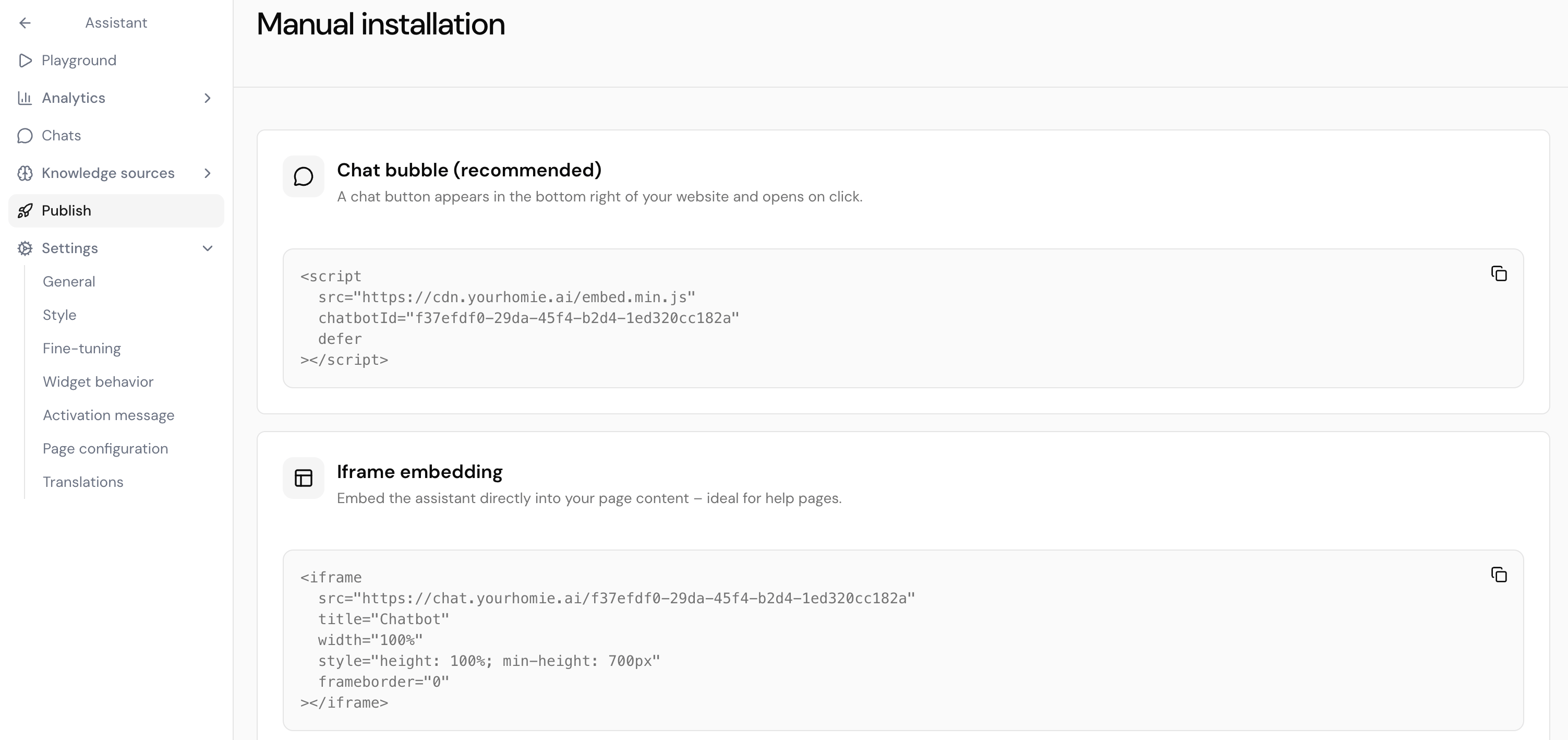
chatbotId.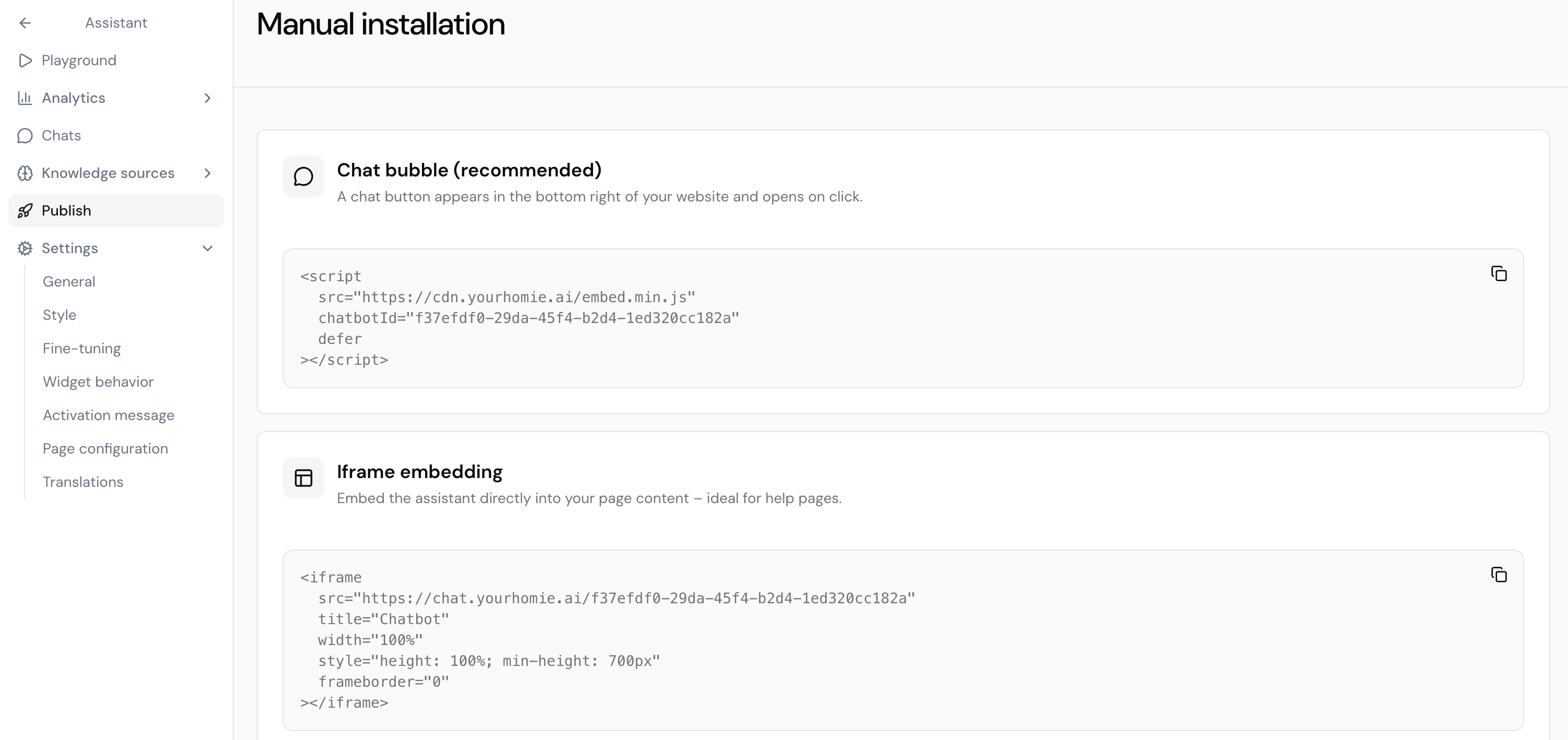
2
Paste it into your site
Add the script to your storefront using the method that fits your platform — usually just before the closing
</body> tag, or through a tag manager or plugin.3
Verify the widget loads
Refresh your store. The chat bubble appears in the bottom-right corner. Open it and send a test message.
Always copy the script from the platform rather than typing it by hand — that way the
chatbotId is guaranteed to match your assistant.Compare install methods
Next steps
Client API
Configure the widget, call methods, and listen to events from your site.
Shopify integration
Connect Shopify via OAuth to sync your product catalog.