

functions.php hook.
Before you start, make sure you have:
- An assistant created on the platform
- Your embed script copied from the assistant’s Publish area
- Admin access to your WordPress site
Add the script to your site
1
Copy your embed script
Open your assistant on the platform, go to its Publish area, and copy the script. It already contains your 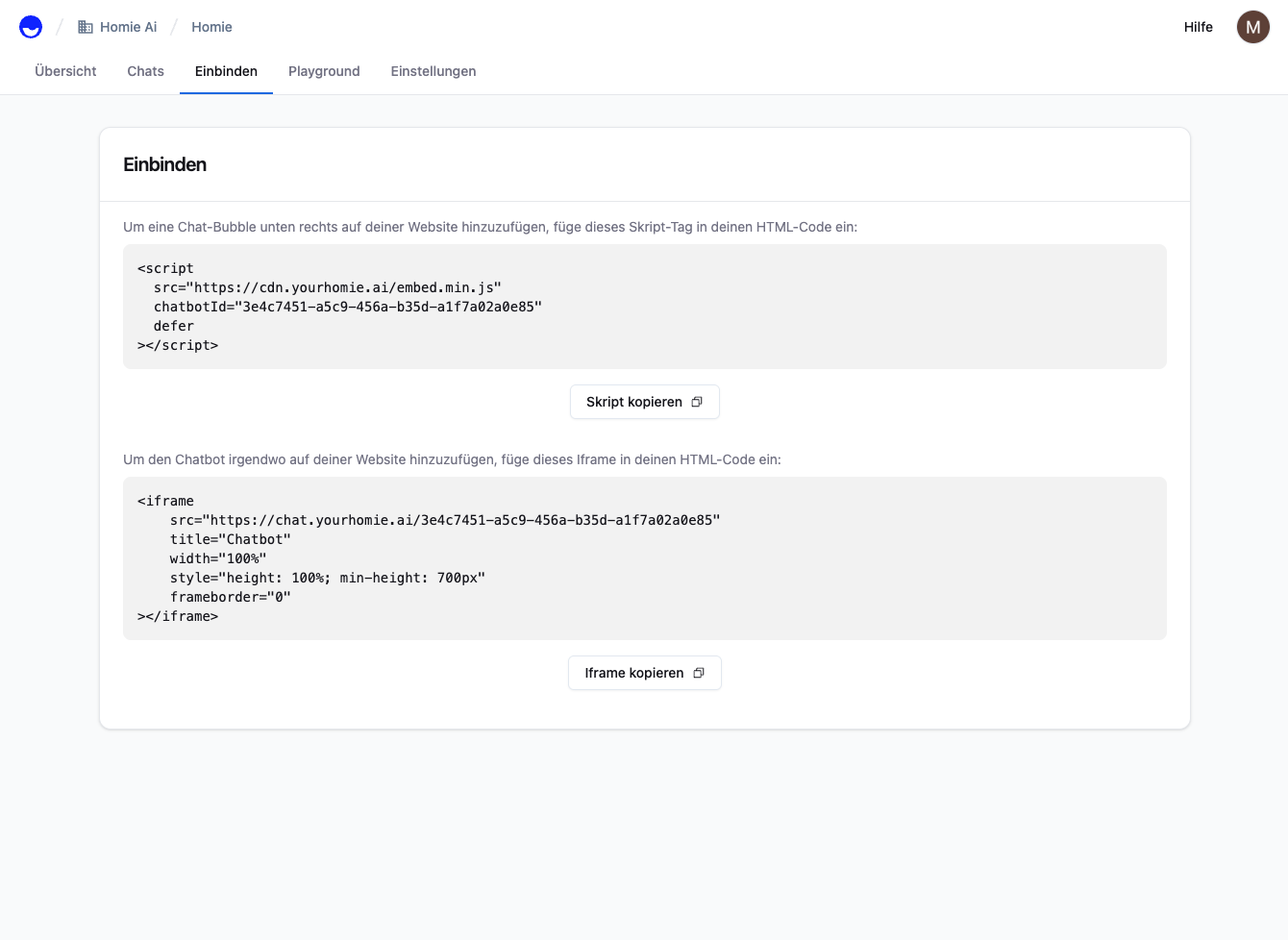
chatbotId.2
Choose how to add it
Pick the method that fits your setup:
- Plugin (recommended)
- functions.php
Install a plugin such as Insert Headers and Footers (or WPCode). Open its settings and paste the script into the Footer / Body section:Save. The plugin injects the script on every page.
3
Save and refresh
Save your changes and reload your store.
Refresh your store. The homie chat bubble appears in the bottom-right corner. Open it and send a test message.
Troubleshooting
- No bubble showing? Clear any caching plugin and your browser cache, then try an incognito window.
- Script stripped out? Some editors sanitize
<script>tags — use a header/footer plugin instead.
Next steps
Client API
Configure the widget and call methods from your site.
Installation overview
Compare install methods for every platform.