

Before you start, make sure you have:
- An assistant created on the platform
- Your embed script copied from the assistant’s Publish area
- Access to your Shopware theme files or the CMS editor
Add the script to your storefront
1
Copy your embed script
Open your assistant on the platform, go to its Publish area, and copy the script. It already contains your 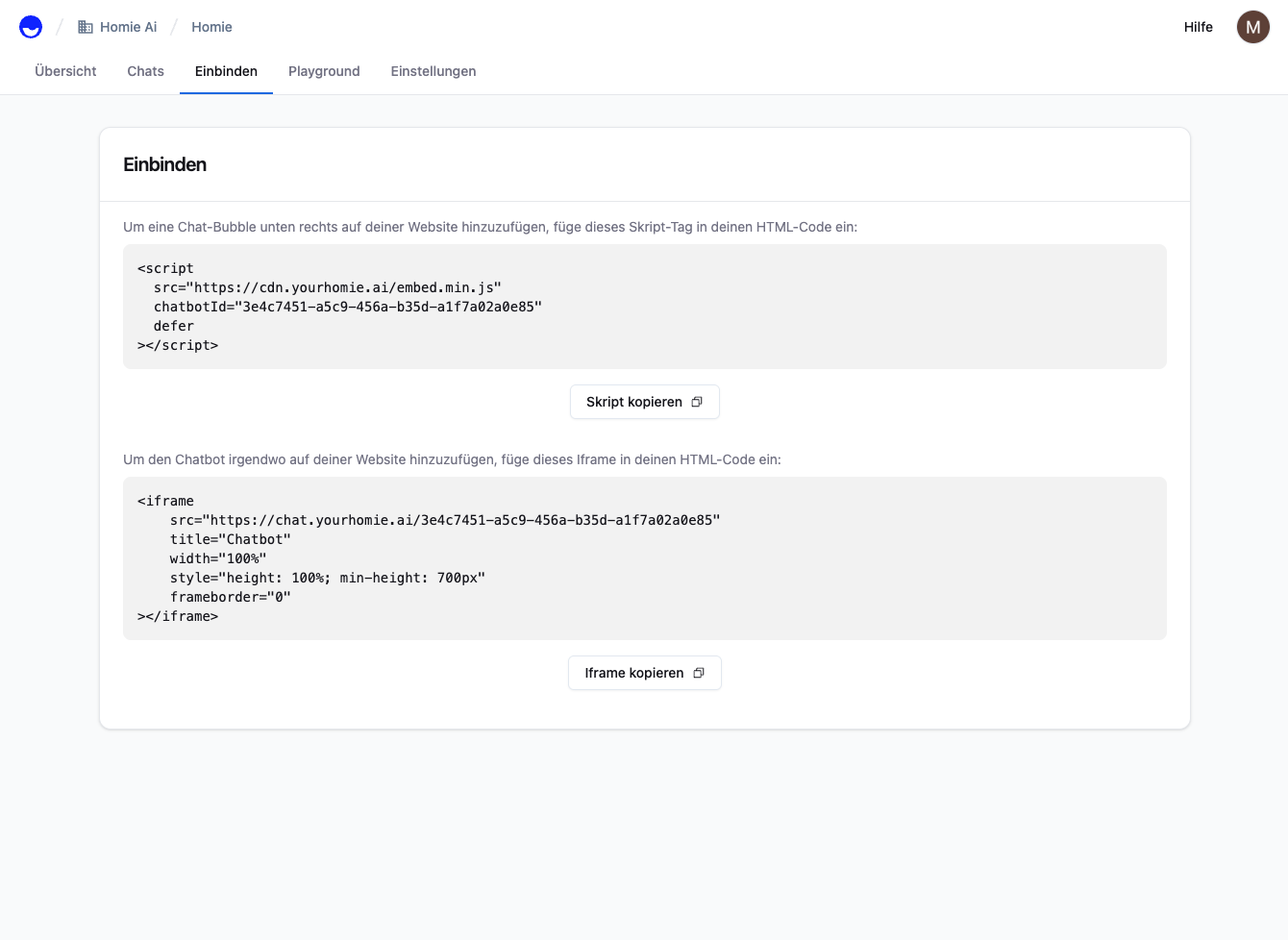
chatbotId.2
Open your storefront layout template
In your theme (or a custom theme that extends the storefront), open the base layout template — typically
Resources/views/storefront/base.html.twig. Override it in your own theme rather than editing the core template directly.3
Paste before the closing body tag
Add the script just before the closing
</body> tag, inside a Twig block so it renders on every storefront page:base.html.twig
4
Clear the cache and rebuild
Clear the Shopware cache and rebuild the storefront so your template change takes effect.
Refresh your storefront. The homie chat bubble appears in the bottom-right corner. Open it and send a test message.
Troubleshooting
- No bubble showing? Clear the Shopware cache, then clear your browser cache or use an incognito window.
- Template change not applied? Make sure you are overriding the template in your active theme and that the theme has been recompiled.
Next steps
Client API
Configure the widget and call methods from your site.
Installation overview
Compare install methods for every platform.