

</body> tag on every page and the chat bubble loads for your shoppers.
Before you start, make sure you have:
- An assistant created on the platform
- Your embed script copied from the assistant’s Publish area
- The ability to edit your site’s HTML
Add the embed script
1
Copy your embed script
Open your assistant on the platform, go to its Publish area, and copy the script. It already contains your 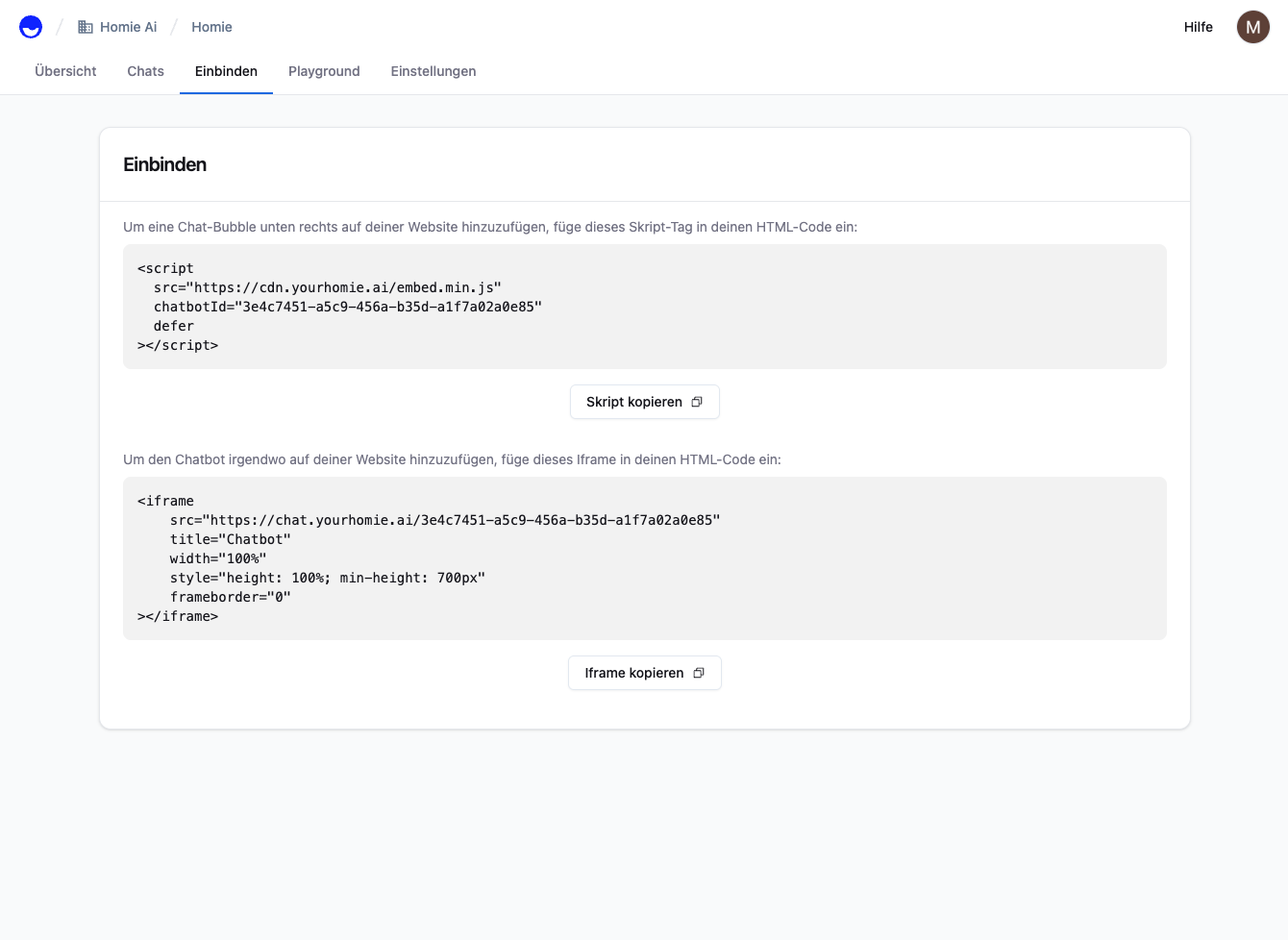
chatbotId.2
Paste it before the closing body tag
Add the script just before the closing
</body> tag on every page of your site:3
Save and verify
Save your file and reload the page in your browser.
Optional attributes
The script accepts optional attributes to pass extra context to your assistant:Reload your site. The homie chat bubble appears in the bottom-right corner. Open it and send a test message.
Direct iframe embed
When you intentionally want to render the chat as a dedicated iframe — for example on in-store terminals, kiosks, or inside a controlled app shell — you can skip the embed script and use the chat URL directly:Troubleshooting
- Widget not showing? Check that your
chatbotIdmatches the one on the platform, that the script sits before the closing</body>tag, and that your content security policy allows the embed script fromcdn.yourhomie.aiand the chat to load fromchat.yourhomie.ai. - Script or iframe not loading? Open the browser console and look for network or error messages, and verify the domain in the URL.
currentUrlnot recognized? Check that the URL is passed in encoded form.- Still stuck? See the Client API troubleshooting guide.
Next steps
Client API
Configure the widget and call methods from your site.
Troubleshooting
Resolve common installation and runtime issues.