

Before you start, make sure you have an assistant created on the platform and access to your Shopify admin.
Recommended: the homie Shopify app
1
Install the homie Shopify app
Open your assistant’s Publish area on the platform, choose Shopify, and select To the Shopify app (or install the homie app directly from the Shopify App Store). It installs with one click and needs no code changes.
2
Open the Theme Editor
Back on the platform, select Open theme editor to jump straight to your store’s Theme Editor. If multiple Shopify stores are connected, first select the store where you want to install this assistant; the link then opens that store’s Theme Editor.
3
Enable homie and enter your assistant ID
In the Theme Editor’s app embeds, turn on the homie embed, paste your assistant ID (copy it from the Publish area), and activate it.
4
Save
Click Save in the Theme Editor.
Refresh your store. The homie chat bubble appears in the bottom-right corner. Open it and send a test message.
Installing the app also connects that Shopify store, so you can choose its catalog as an assistant’s product source and turn on conversion tracking for it. Install the app in each additional store you want to manage. See the Shopify integration for the data, billing, and conversion side.
Alternative: paste the embed script
If you can’t or don’t want to use the Theme Editor, add the embed script to your theme manually.1
Copy your embed script
Open your assistant on the platform, go to its Publish area, and copy the script. It already contains your 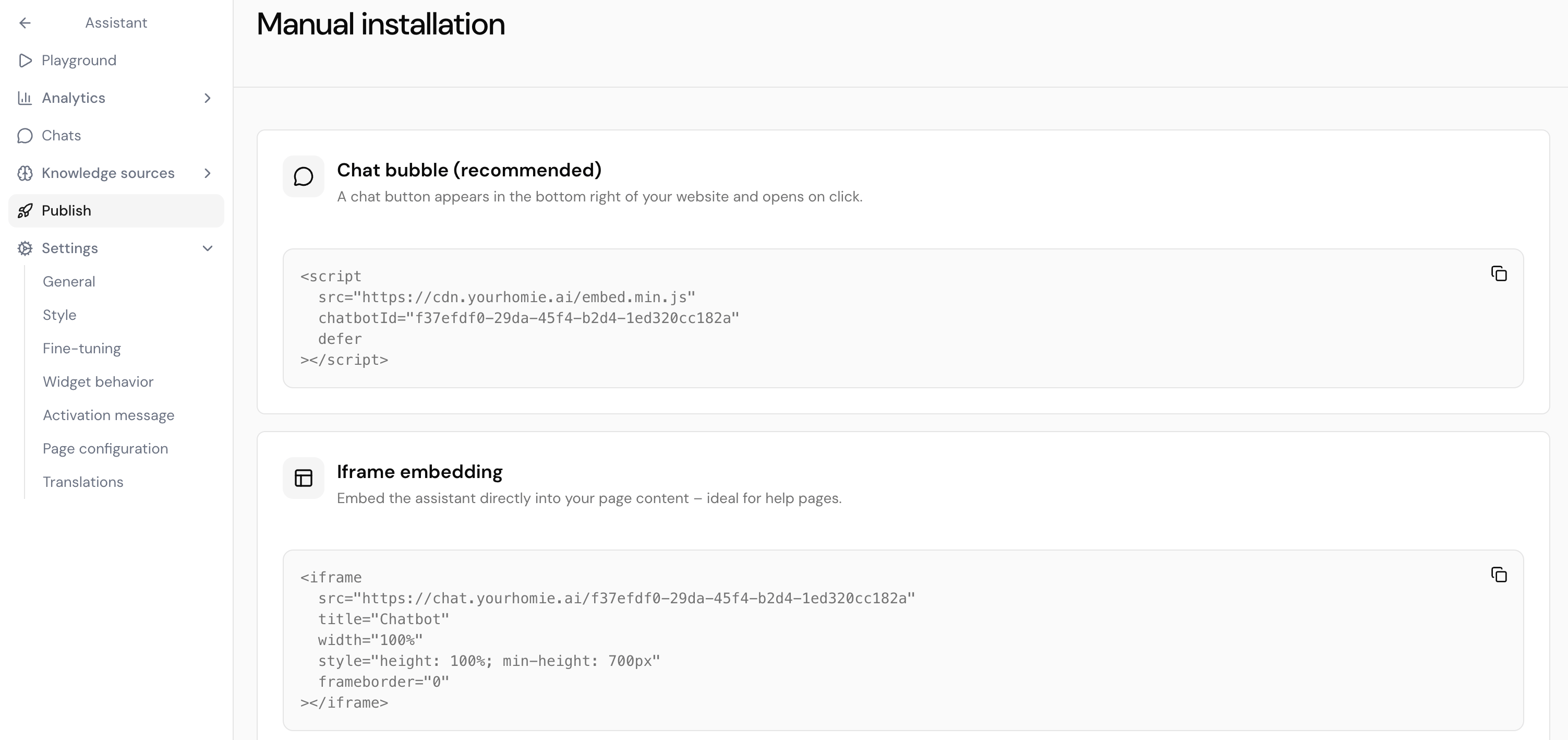
chatbotId.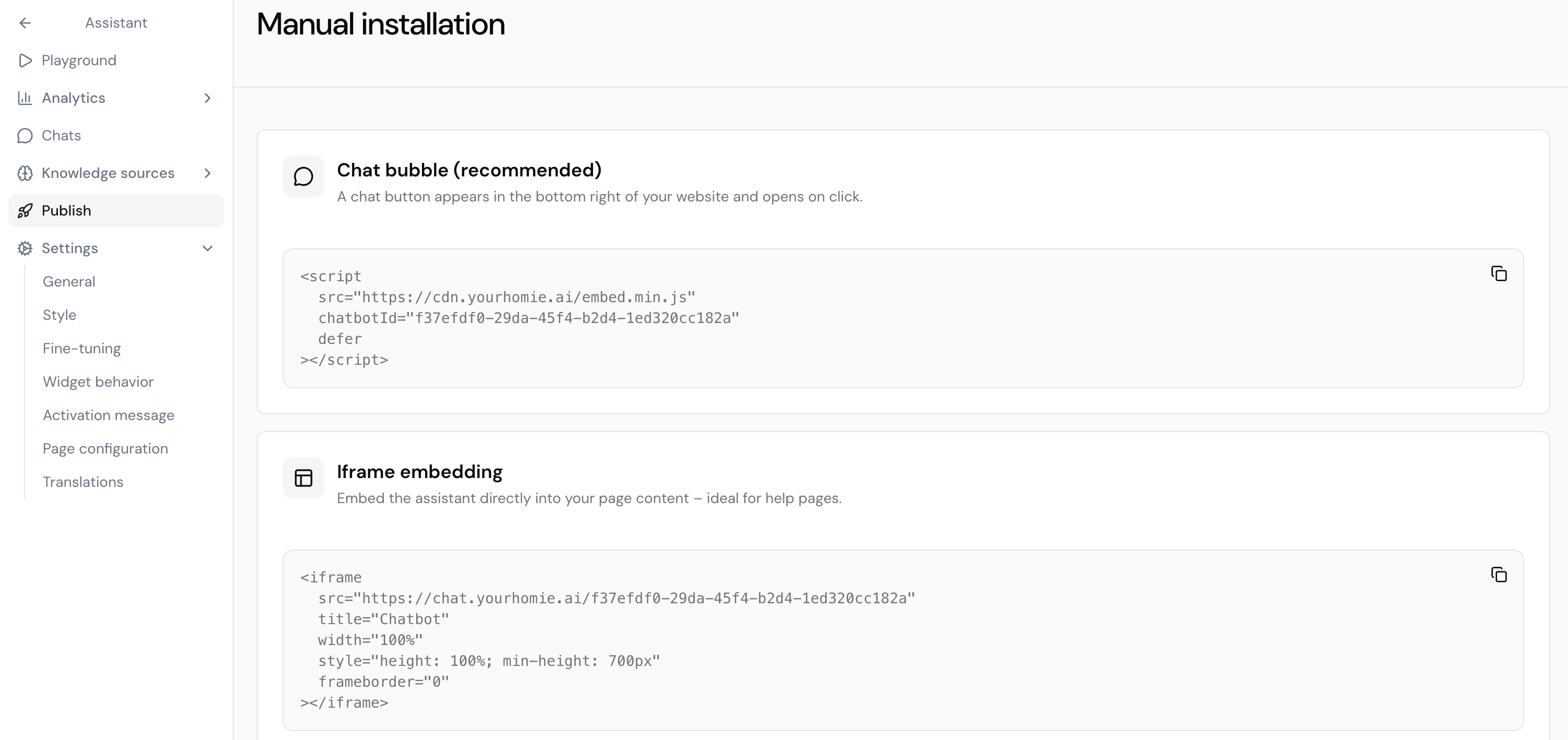
2
Open Themes in Shopify
In your Shopify admin, go to Online Store → Themes.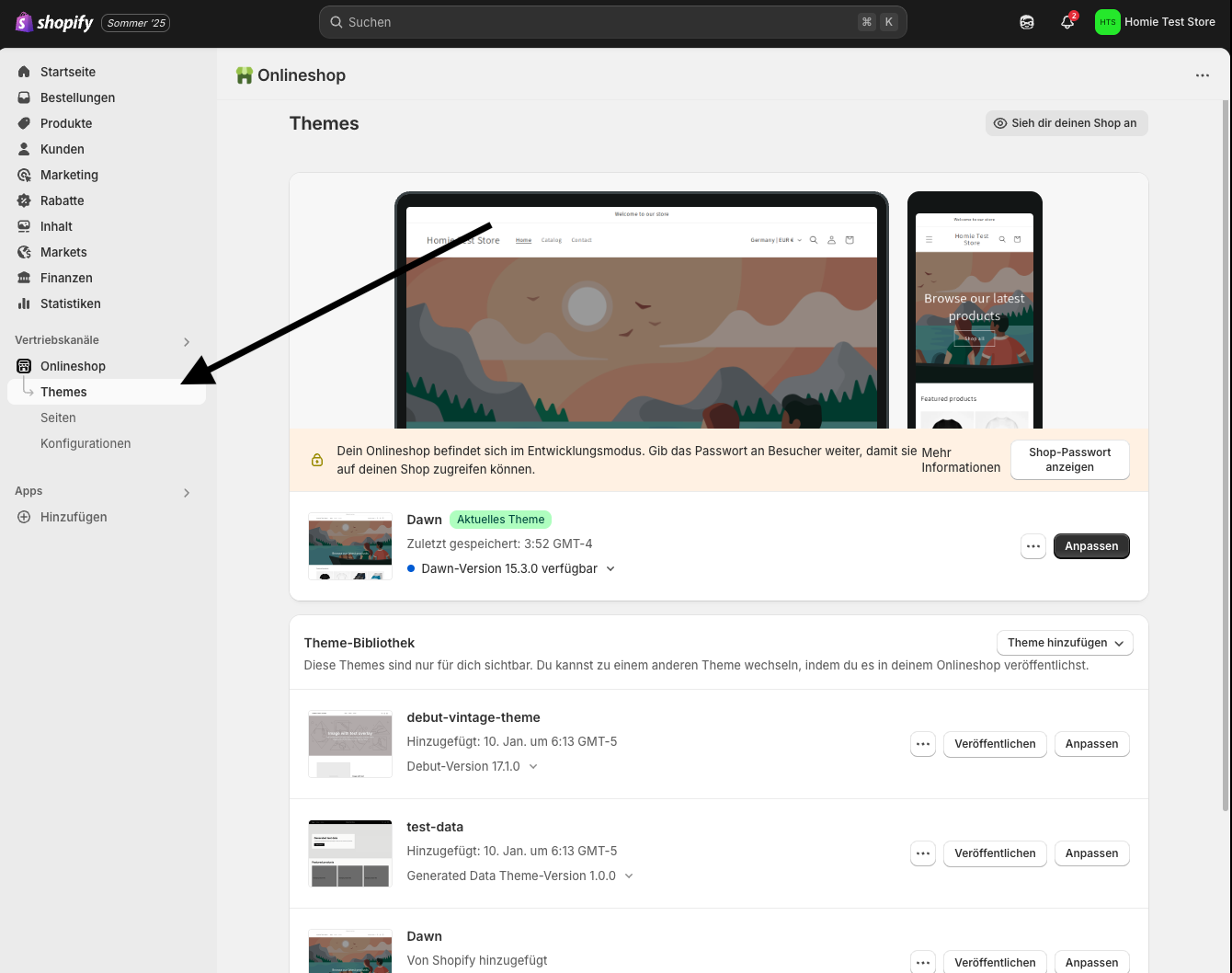
3
Edit your theme code
Open the ••• menu next to your live theme and choose Edit code.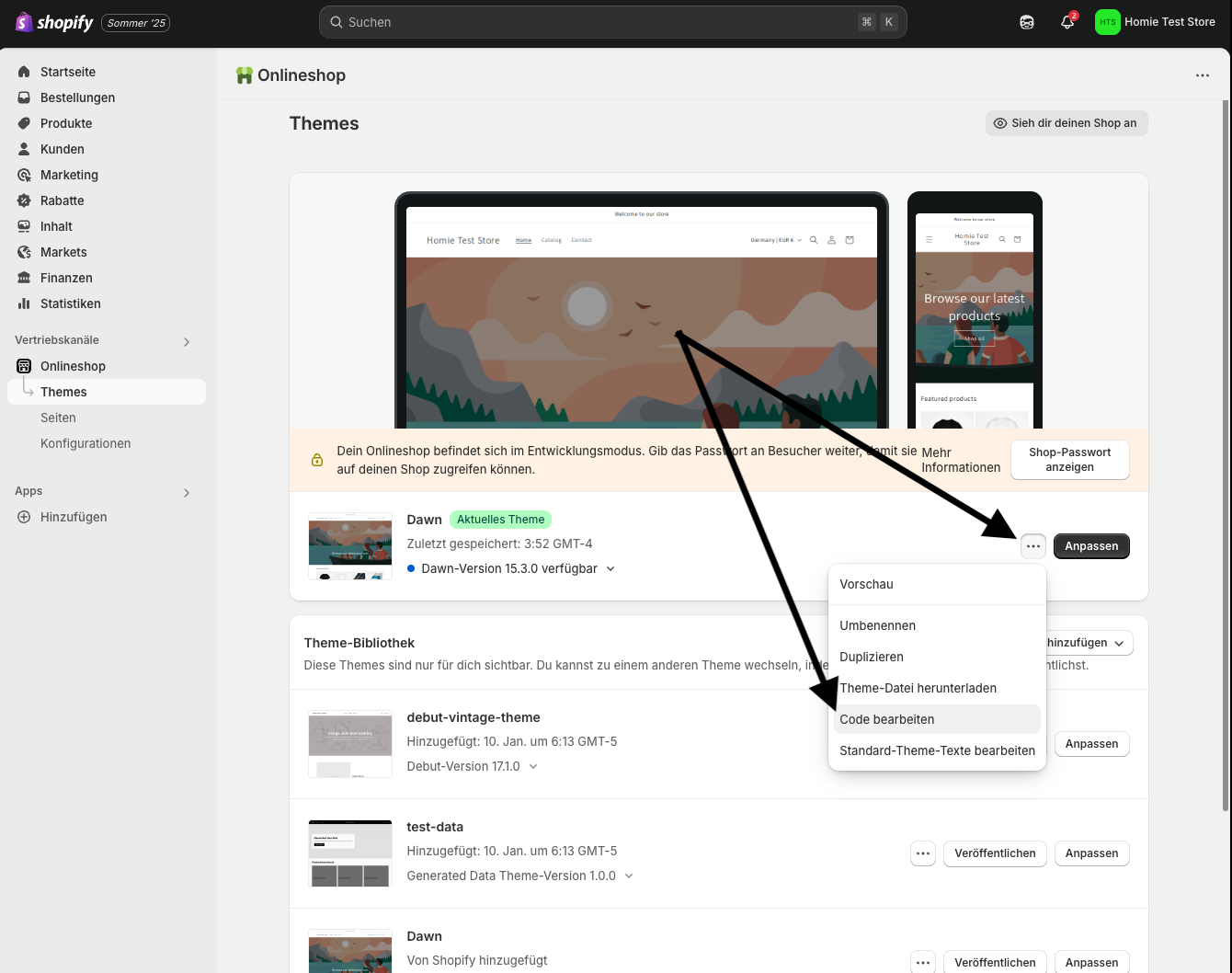
4
Paste before the closing body tag and save
- In the sidebar, open layout/theme.liquid.
- Scroll to the bottom, just above the closing
</body>tag. - Paste the script you copied.
- Click Save.
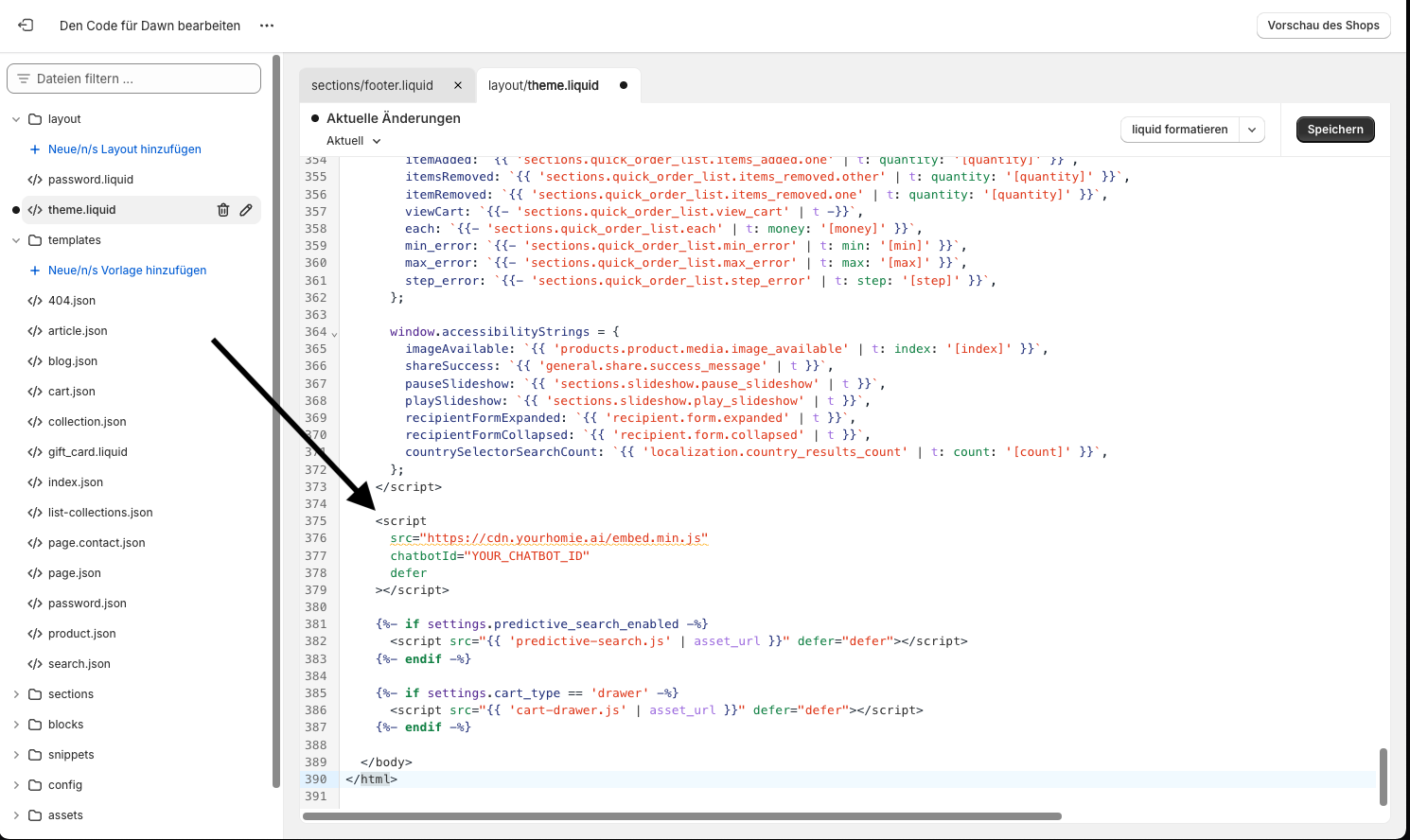
theme.liquid
Troubleshooting
- No bubble showing? Clear your cache or open the store in an incognito window.
- Multiple themes? Enable homie (or add the script) on every theme you publish.
- Multiple stores? Select the intended store in the Shopify Publish page before opening its Theme Editor. Widget settings and activation are stored in each Shopify theme separately.
- Need a different position or color? Adjust it on the platform under your assistant’s appearance settings.
Next steps
Shopify integration
Sync your product catalog and attribute purchases to conversations.
Client API
Configure the widget and call methods from your site.