

Page configuration applies to web assistants embedded on a website.
Open page configuration
1
Open Page settings
Go to Assistants in the homie platform, select your assistant, and open Settings → Page configuration.
2
Create a URL rule
Click Create to add a new URL configuration.
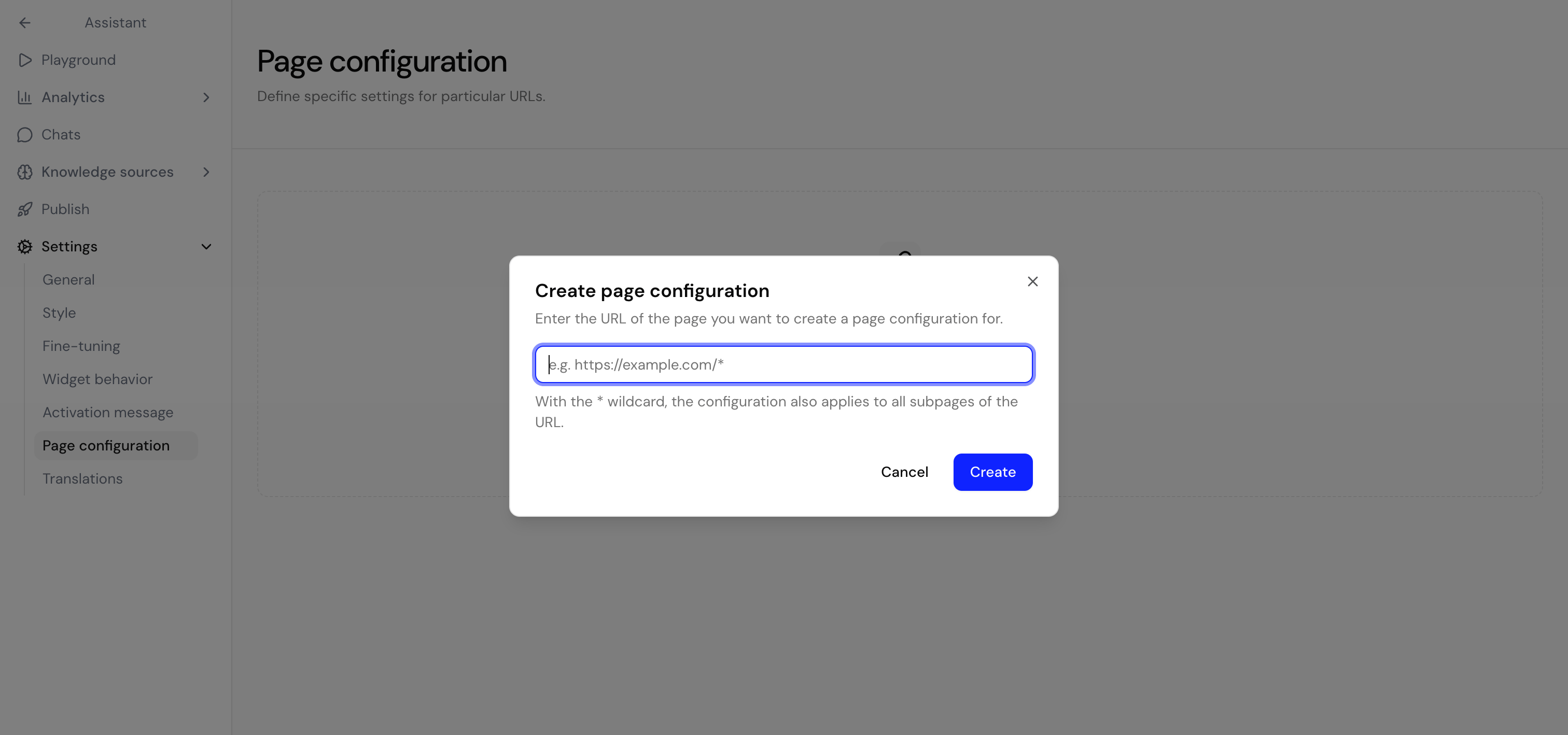
URL patterns
Use the* wildcard to match multiple pages with one rule:
An exact rule (no wildcard) always takes priority over a wildcard rule. When several wildcard rules match, the most specific one — the one with the most non-wildcard characters — wins.
Per-page options
After creating a URL rule, configure how the assistant behaves on matching pages.Hide the chatbot
Enable this option to completely hide the widget on pages matching the pattern — useful on checkout or other focused pages.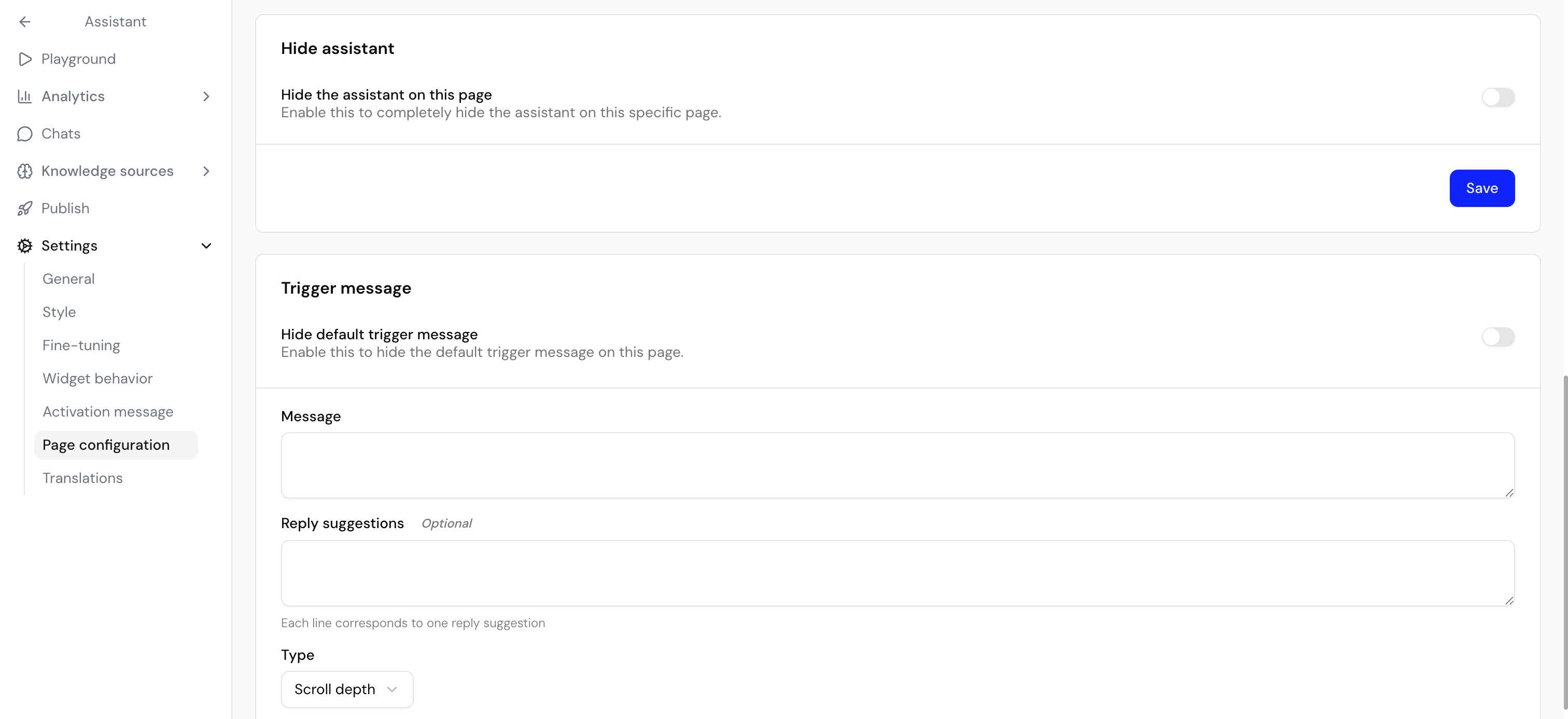
Override the launcher hint text
Set a page-specific hint text (hover label) for the launcher so the call to action matches the page — for example “Need help checking out?” on the cart page.Initial message
Set a custom welcome message that appears when the chat is first opened on matching pages. This overrides the default welcome message. You can use bold or italic markdown. Example:Suggested messages
Provide page-specific quick-reply prompts shown in the chat. Each line is one suggested message. Example:Page-specific activation message
Show an activation message tailored to the page, with its own message, optional reply suggestions, trigger type, threshold, delay, and repeat time.- Scroll depth — triggers at a percentage of the page (0–100).
- Time on page — triggers after a number of seconds.
Use cases
Search page
Forhttps://yourshop.com/search*:
- Initial message: “Hi! Need help finding something? I can assist with your search.”
- Activation message: “Looking for something specific? Let me help you find it!” (triggers at 30% scroll depth)
Checkout page
Forhttps://yourshop.com/checkout:
- Hide chatbot: enabled, to avoid distraction during checkout, or
- Initial message: “Almost done! Need help with payment or shipping options?”
Troubleshooting
Message not showing
Message not showing
Check that the URL pattern matches your page URLs exactly, including the full domain and any query parameters.
Wildcard not working
Wildcard not working
Make sure the pattern starts with
https:// and includes your domain. Use * in the path to match multiple pages.Activation message too frequent
Activation message too frequent
Increase the repeat cooldown so the bubble shows less often.
Configuration not applying
Configuration not applying
Confirm the activation message is set to active for the rule.
Next steps
Set global widget behavior
Configure the global display mode and Activation message.
Translate the interface
Localize page-specific labels and messages.