

Goal: Generate short, helpful sample questions (typically 3–5) for selected product pages. The frontend fetches
these publicly via API and renders them only if a valid set exists.
Prerequisites
- You’re working within an Organization.
- Optionally, you’ve identified your most visited or most asked-about PDPs.
1) Configuration
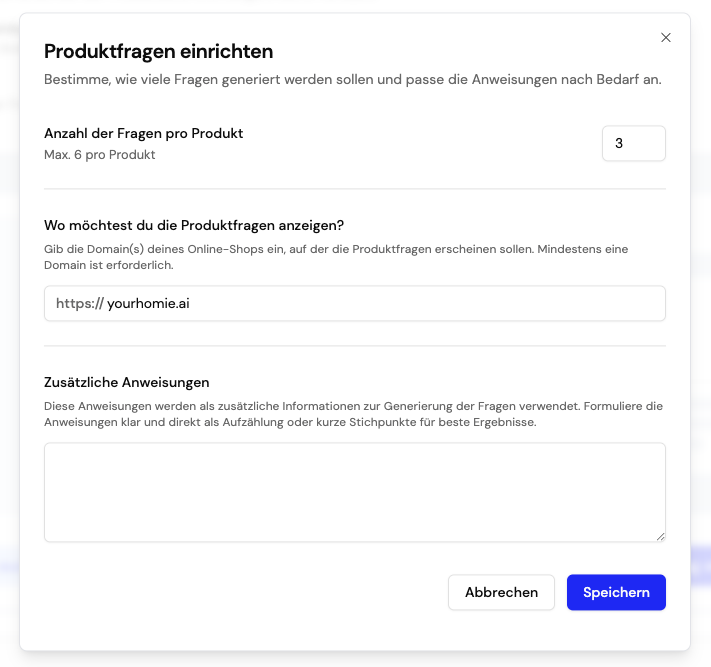
Navigate to one of your Assistants and select Product Questions. Click Setup now to begin the initial configuration. This setup defines how sample questions are generated and which domains may access them.Configuration options
| Setting | Required | Description | Recommendation |
|---|---|---|---|
| Number of generated sample questions | ✓ Required | Determines how many questions are auto-generated per product page. | 3–5 questions provide a good balance between user engagement and UI clarity. |
| Domains / Origins | ✓ Required | Whitelist of domains allowed to fetch question sets. At least one domain must be added. | Add your production domain(s) to ensure only authorized origins can access your generated questions. |
| Additional Rules for Generation | ○ Optional | Custom instructions that guide the AI when generating questions (e.g., tone, focus areas, excluded topics). | Useful if you want brand-specific phrasing or to emphasize certain product attributes. |
2) Add product pages
Click Create to add new product pages. You can choose from three import methods: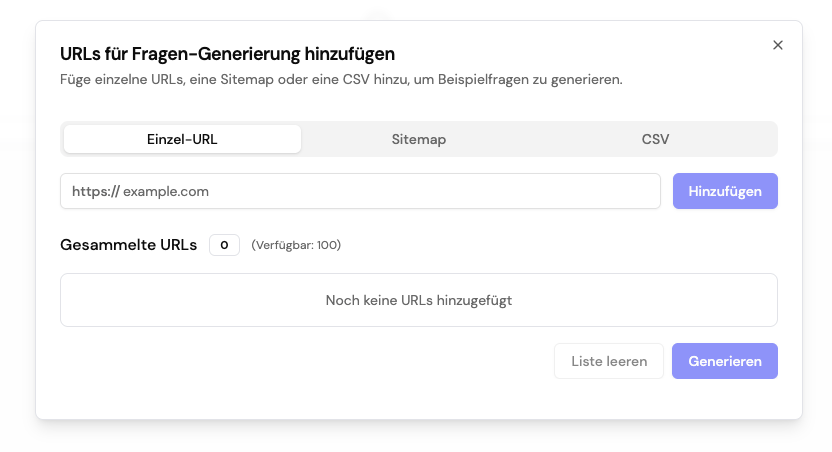
A) Single URL
Enter a product page URL directly and click Add. Ideal for adding individual high-priority pages.B) Sitemap
Select a domain to scan its sitemap. Homie automatically parses the sitemap and extracts only product detail pages.C) CSV Import
Upload a CSV file containing your product URLs. The file must include a column namedurl — this is the only column that will be processed.
You can combine all three methods — start with your top PDPs manually and later expand via sitemap or CSV to scale up.
3) Generate questions
Once your list is ready, click Generate. Homie processes all URLs in the background — duplicates are automatically detected and skipped. Depending on the number of URLs, this may take a few minutes. The result table shows each product with its generated questions, timestamp, and how often they’ve been requested by your frontend.4) Display
There are two ways to display the generated questions on your product pages:Shopify
- Open the Shopify Theme Editor.
- Navigate to a product page.
- Click Add Section in the sidebar.
- Under Apps, select the Homie Product Questions component.
- Drag the block to your desired position (e.g., below the product description).
Make sure questions have already been generated for the product you’re previewing. Otherwise, only an empty section
will be displayed.
Manual Integration
Add the following HTML element to your page template. Place it wherever you want the questions to appear:The main assistant script automatically detects this element and populates it with the generated questions.