> ## Documentation Index
> Fetch the complete documentation index at: https://docs.yourhomie.ai/llms.txt
> Use this file to discover all available pages before exploring further.
# Usage
> Track messages, chats, and conversions across your assistants, with a per-assistant breakdown and date filters.
The Usage page shows how many messages you've used against your plan and how your assistants compare. Open **Usage** from the sidebar to view your metrics. Usage updates in real time as your assistants handle conversations.
## Overview
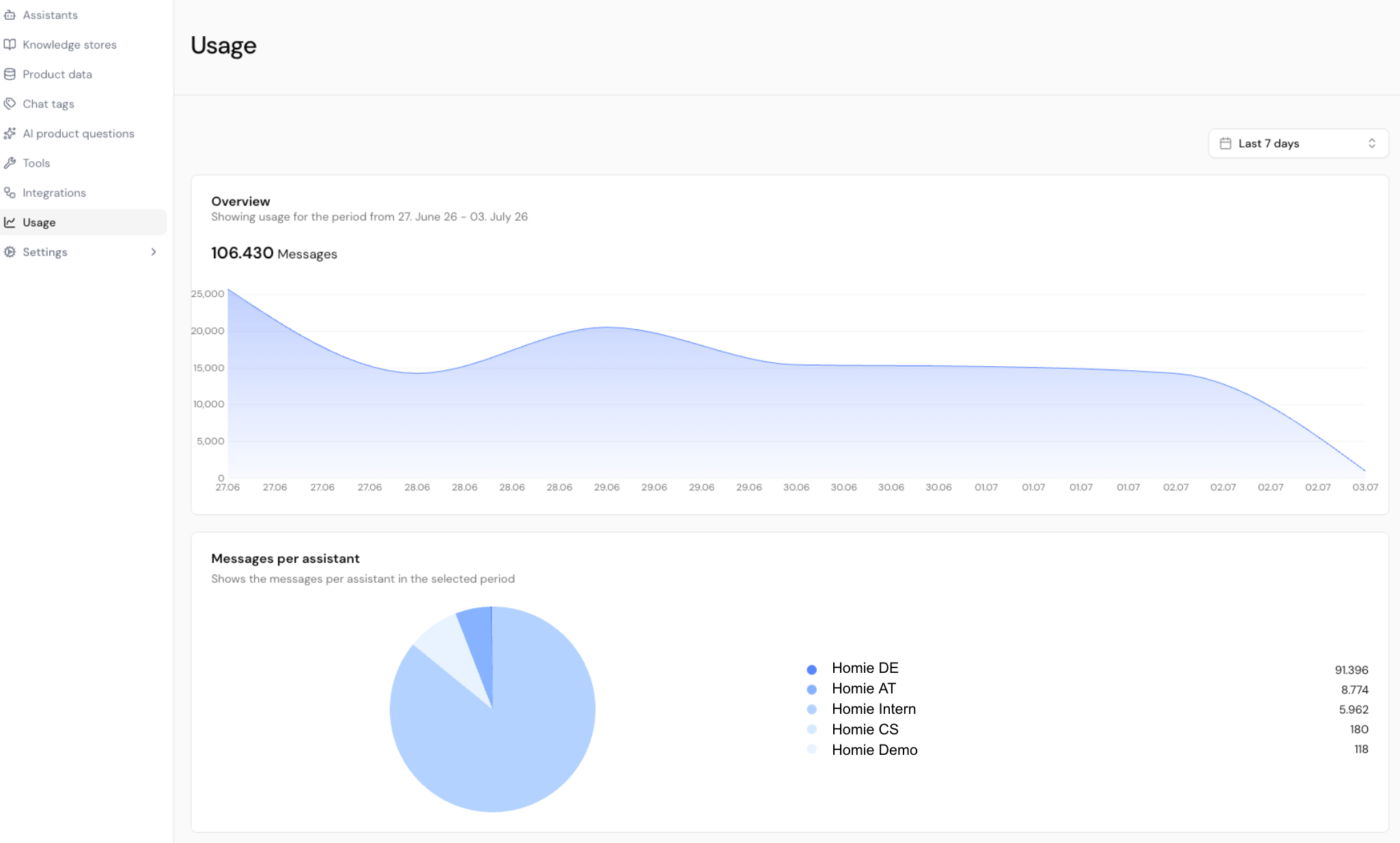
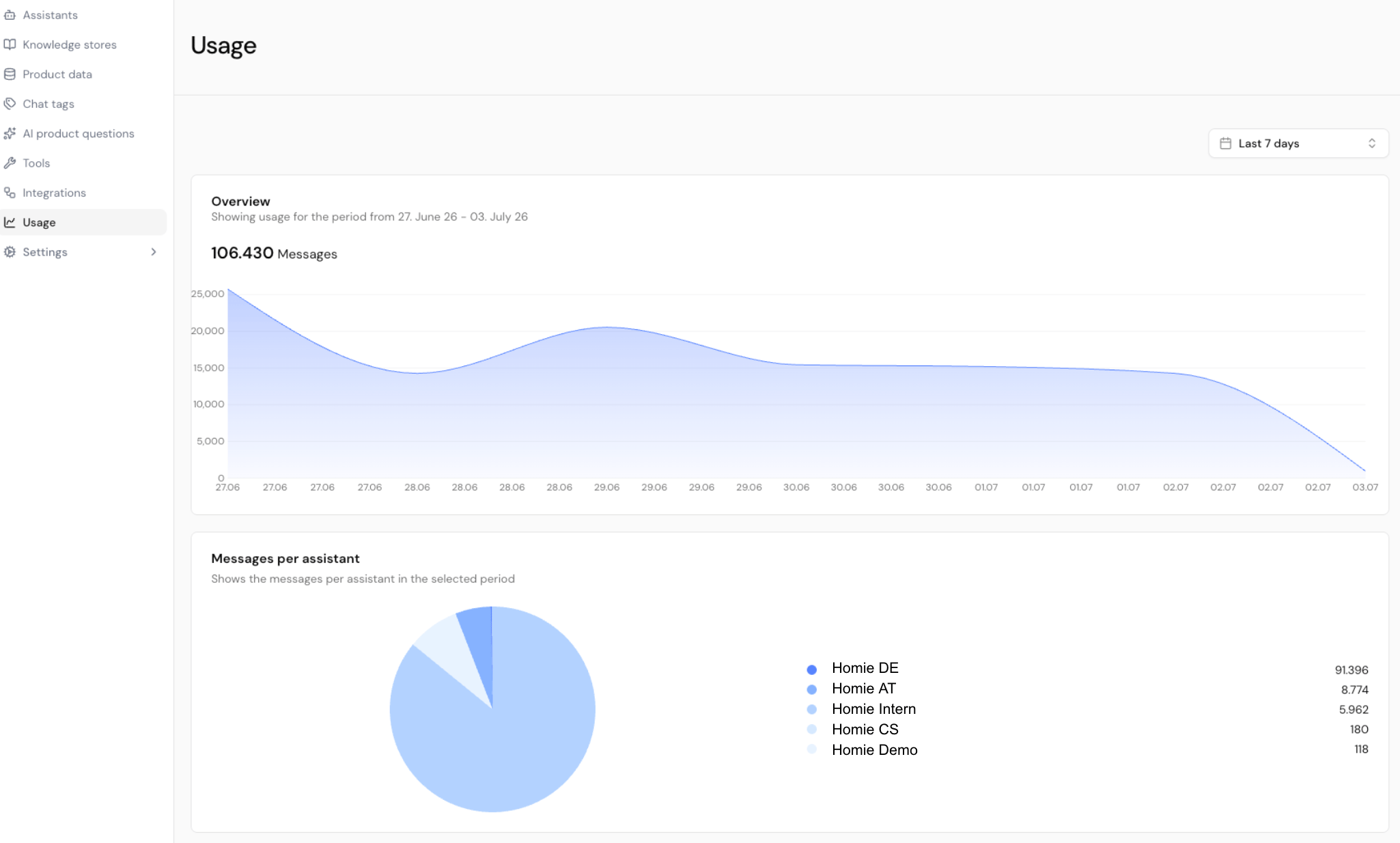
The **Overview** card shows the total messages used in the selected period against your plan's monthly quota, with a chart of messages over time. On Enterprise plans, which aren't capped by a fixed quota, only the totals are shown.
 ## Messages per assistant
The **Messages per assistant** breakdown shows how each assistant contributes to your total, so you can see which assistants drive the most volume. Use it to spot heavy consumers or assistants that need attention.
## Date filters
A filter lets you adjust the time range for the metrics on the page.
| Option | What it shows |
| ----------------------------------------------------- | ---------------------------------------------------- |
| **Current billing period** | Default view — tracks usage against your plan quota. |
| **Previous billing period** | The billing period before the current one. |
| **Yesterday / Last 7 days / This month / Last month** | Quick looks at recent activity. |
| **Custom** | Pick any start and end date for ad-hoc analysis. |
Watch your progress toward the quota. When you're getting close, open [Billing](/en/user-guide/settings/billing) to move to a higher plan before your assistants run out of messages.
## Next steps
Change your plan or set a spending limit.
Control who can access each assistant.
## Messages per assistant
The **Messages per assistant** breakdown shows how each assistant contributes to your total, so you can see which assistants drive the most volume. Use it to spot heavy consumers or assistants that need attention.
## Date filters
A filter lets you adjust the time range for the metrics on the page.
| Option | What it shows |
| ----------------------------------------------------- | ---------------------------------------------------- |
| **Current billing period** | Default view — tracks usage against your plan quota. |
| **Previous billing period** | The billing period before the current one. |
| **Yesterday / Last 7 days / This month / Last month** | Quick looks at recent activity. |
| **Custom** | Pick any start and end date for ad-hoc analysis. |
Watch your progress toward the quota. When you're getting close, open [Billing](/en/user-guide/settings/billing) to move to a higher plan before your assistants run out of messages.
## Next steps
Change your plan or set a spending limit.
Control who can access each assistant.