> ## Documentation Index
> Fetch the complete documentation index at: https://docs.yourhomie.ai/llms.txt
> Use this file to discover all available pages before exploring further.
# Account settings
> Manage your personal profile, language, password, two-factor authentication, and account deletion.
Your account settings cover everything tied to you personally, separate from your [workspace](/en/user-guide/settings/workspace). Open your **Account** settings to update your details.
## Personal data
Update your **name** at any time. Your **email address** is shown here — it's used for sign-in, notifications, and team invitations — but it can't be changed from the platform.
You can also set your **language preference** for the platform. The interface is available in English and German.
## Language
Select the language for the user interface. This setting is saved individually for each user – so even in multilingual teams, each user can set their preferred language independently of other team members.
## Password
If you signed up with email and password, you can change your password from the Account page. Choose a strong, unique password and update it whenever you suspect it may be exposed.
If you signed in through a social or single sign-on provider, there is no password to manage here — authentication is handled by that provider.
## Two-factor authentication (2FA)
Two-factor authentication adds a second verification step to your sign-in. homie uses a one-time passcode (OTP) sent to your email address.
Open your **Account** settings and find the **Two-Factor Authentication** section.
Select **Enable 2FA**. homie sends a one-time passcode (OTP) to your account email address.
Enter the OTP from your inbox to confirm. Once verified, 2FA is active on your account.
After enabling 2FA, you'll be asked for an email OTP each time you sign in, keeping your account protected even if your password is compromised.
You can disable two-factor authentication from the same section at any time.
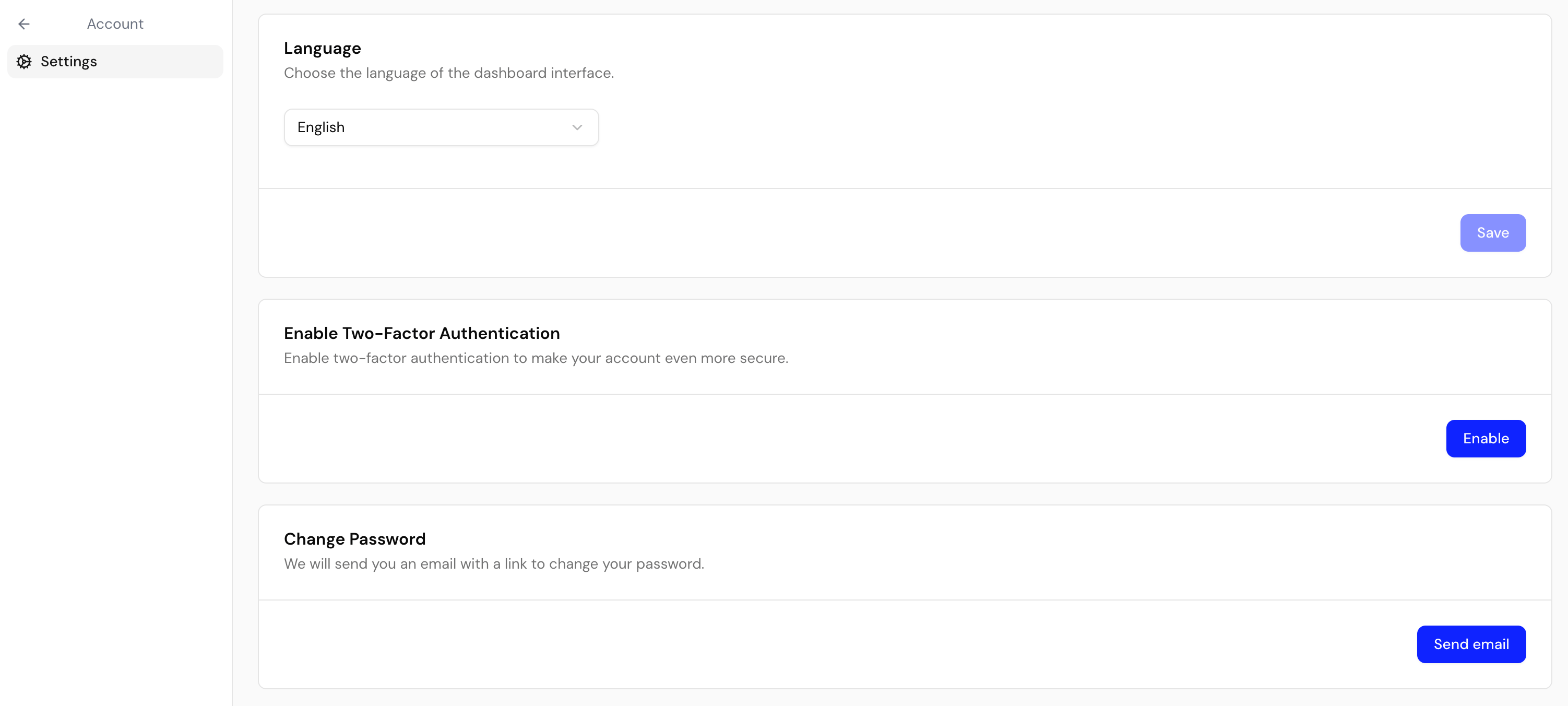 {/* TODO: Screenshot — Dashboard > Settings > Account > Two-factor authentication */}
## Delete your account
You can permanently delete your personal account from the bottom of the Account page.
Deleting your account is permanent and cannot be undone. If you are the only owner of a workspace, transfer ownership or delete the workspace first. Review your [workspace settings](/en/user-guide/settings/workspace) before deleting.
## Next steps
Manage your organization's name, profile, and membership.
Invite teammates and control their roles and access.
{/* TODO: Screenshot — Dashboard > Settings > Account > Two-factor authentication */}
## Delete your account
You can permanently delete your personal account from the bottom of the Account page.
Deleting your account is permanent and cannot be undone. If you are the only owner of a workspace, transfer ownership or delete the workspace first. Review your [workspace settings](/en/user-guide/settings/workspace) before deleting.
## Next steps
Manage your organization's name, profile, and membership.
Invite teammates and control their roles and access.