> ## Documentation Index
> Fetch the complete documentation index at: https://docs.yourhomie.ai/llms.txt
> Use this file to discover all available pages before exploring further.
# Quickstart
> Go from sign-up to a live chat assistant on your store in six steps.
This guide walks you through your first run with homie AI — from creating an account to installing the assistant on your store. You can complete it in well under an hour.
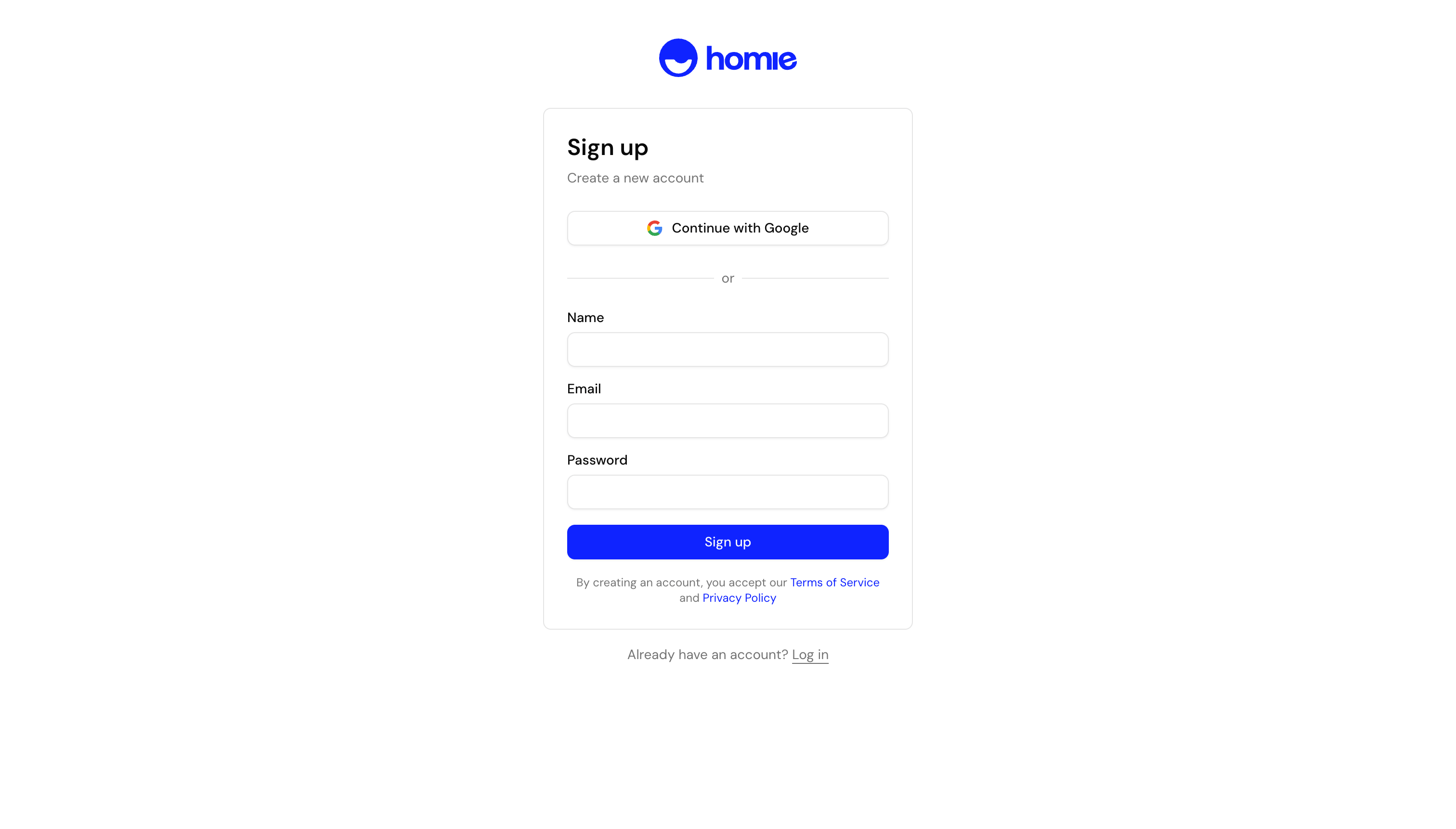
Go to [app.yourhomie.ai](https://app.yourhomie.ai) and sign up, or sign in if you already have an account.
 Set up your organization (your workspace) and choose a plan that fits your store's expected message volume. You can change your plan later as you grow.
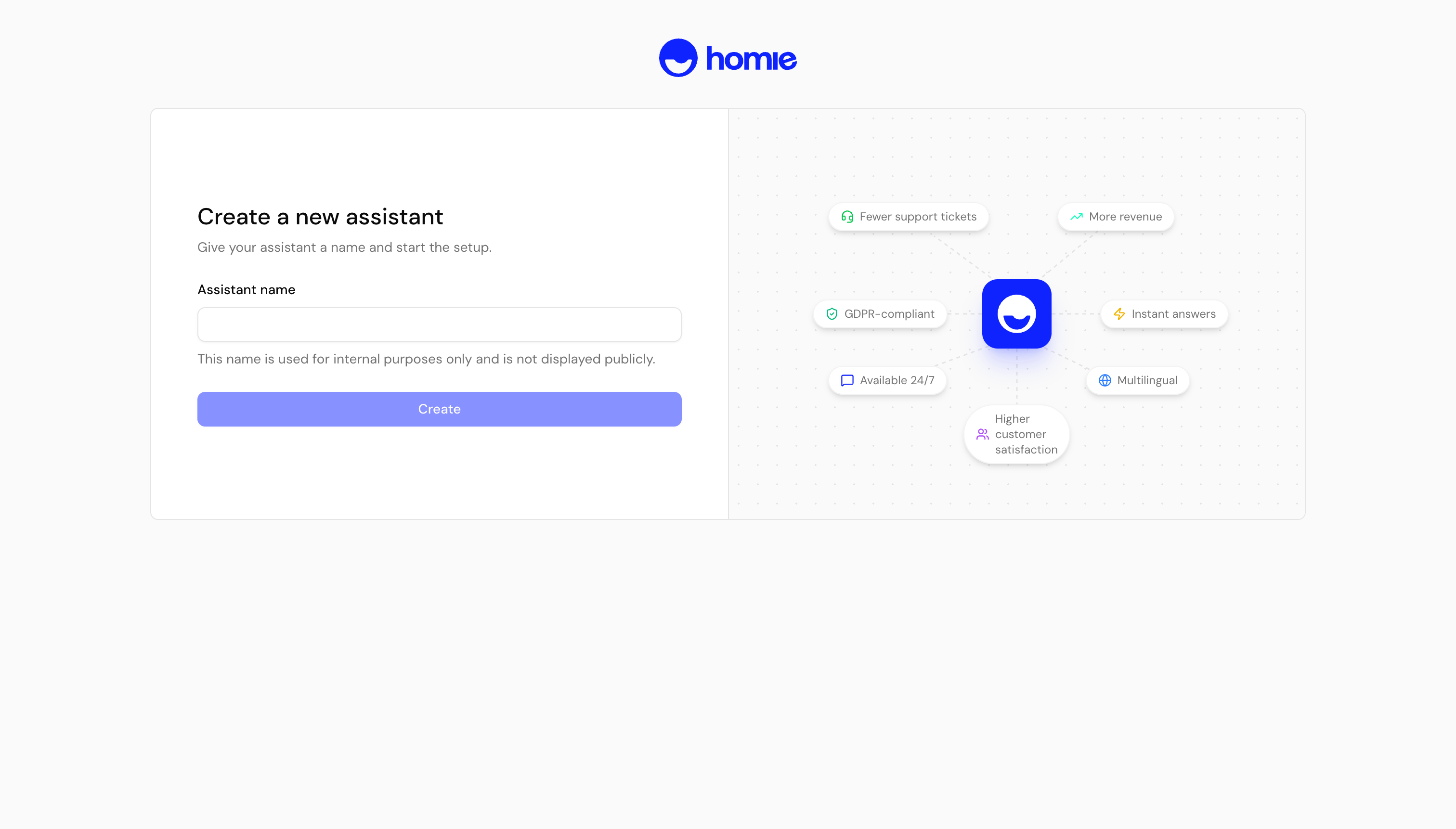
Create an assistant and give it a name. You can seed it from your website URL — homie scans the site to tailor the assistant to your content and branding.
Set up your organization (your workspace) and choose a plan that fits your store's expected message volume. You can change your plan later as you grow.
Create an assistant and give it a name. You can seed it from your website URL — homie scans the site to tailor the assistant to your content and branding.
 Connect a knowledge store and your product data so the assistant answers with accurate, store-specific information. See [Knowledge overview](/en/user-guide/knowledge/overview) for details.
Open the Playground and chat with your assistant exactly as a shopper would. Tweak its tone and knowledge until the answers feel right.
Test the questions your customers ask most — sizing, stock, shipping, returns — before you go live.
When you're happy, install the widget on your store. Follow the [Installation overview](/en/user-guide/installation/overview) for your platform.
## Next steps
Pick your platform and add the widget to your site.
Train your assistant on websites, files, FAQs, and product data.
Connect a knowledge store and your product data so the assistant answers with accurate, store-specific information. See [Knowledge overview](/en/user-guide/knowledge/overview) for details.
Open the Playground and chat with your assistant exactly as a shopper would. Tweak its tone and knowledge until the answers feel right.
Test the questions your customers ask most — sizing, stock, shipping, returns — before you go live.
When you're happy, install the widget on your store. Follow the [Installation overview](/en/user-guide/installation/overview) for your platform.
## Next steps
Pick your platform and add the widget to your site.
Train your assistant on websites, files, FAQs, and product data.