> ## Documentation Index
> Fetch the complete documentation index at: https://docs.yourhomie.ai/llms.txt
> Use this file to discover all available pages before exploring further.
# Setup
> Configure product questions, generate them for your product pages, and embed the widget on your storefront.
This guide walks you through generating short, helpful questions for your product detail pages (PDPs) and showing them on your storefront. Your frontend fetches the questions publicly and renders them only when a valid set exists.
**Before you start:** work within an organization, and ideally identify your most visited or most asked-about PDPs so you can start where it matters most.
## 1. Configure product questions
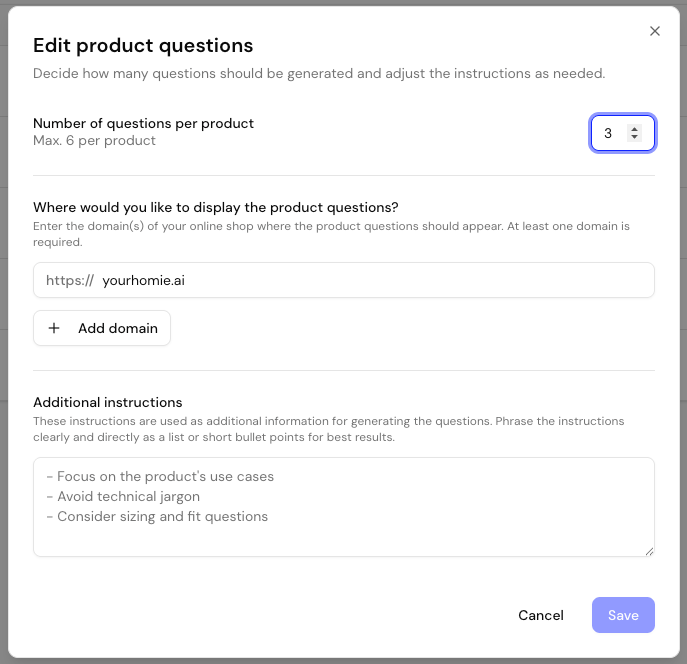
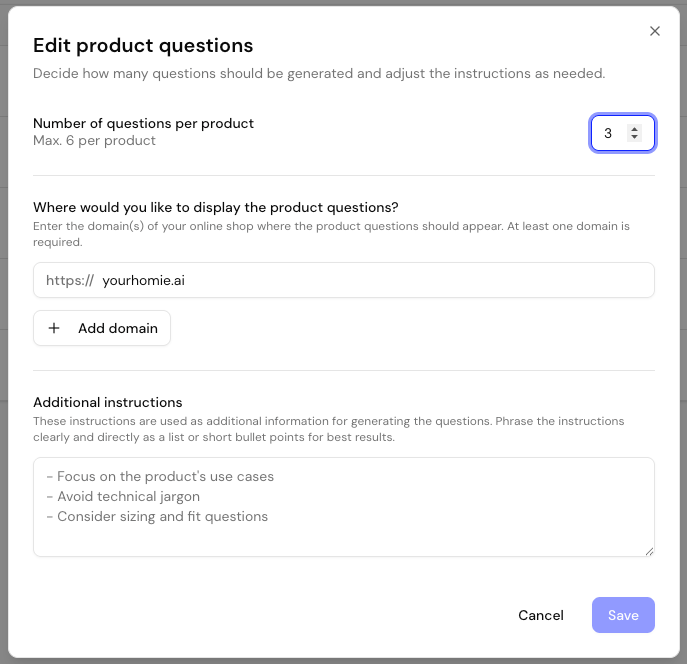
Open one of your assistants and select **AI product questions**, then click **Start setup** to begin the initial configuration. This setup defines how questions are generated and which domains may fetch them.
| Setting | Required | Description | Recommendation |
| ---------------------------------------------------------- | -------- | ------------------------------------------------------------------------------------------------- | ------------------------------------------------------------------------------ |
| **Number of questions per product** | Required | How many questions homie generates for each product page (1–6). | **3–5** keeps the questions useful without crowding the page. |
| **Where would you like to display the product questions?** | Required | The domain(s) of your shop allowed to fetch and show the question sets. At least one is required. | Add your live shop domain(s) so only authorized sites can load your questions. |
| **Additional instructions** | Optional | Extra guidance for generation, such as tone, focus areas, or topics to avoid. | Phrase them as short bullet points for the best results. |
 ## 2. Add product pages
Click **Create** to add product pages. You can choose from three import methods.
## 2. Add product pages
Click **Create** to add product pages. You can choose from three import methods.
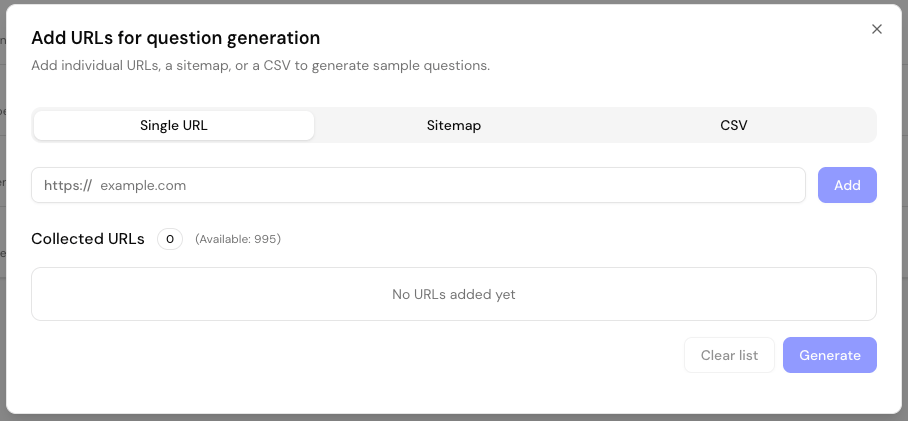
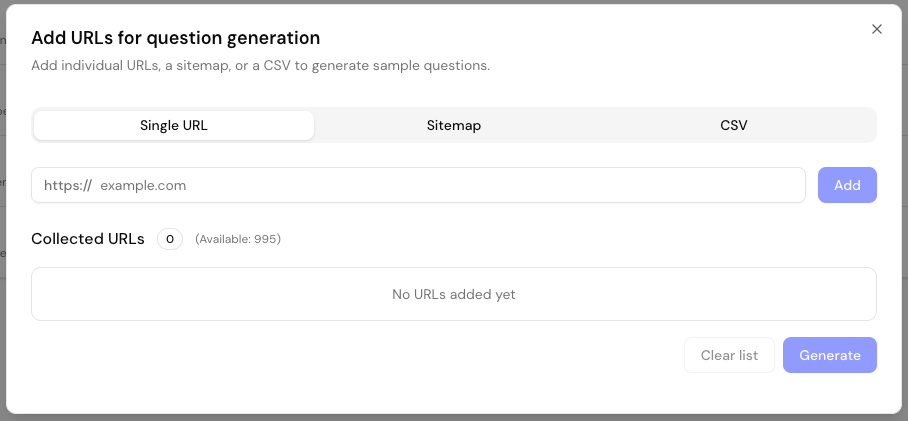 Enter a product page URL directly and click **Add**. Ideal for adding individual high-priority pages.
Pick one of your allowed domains and a sitemap path (default `/sitemap.xml`), then click **Load sitemap**. By default homie imports only URLs that match common product-page patterns; you can choose to import every URL instead.
Upload a CSV file containing your product URLs. The file must include a column named **`url`** — this is the only column that gets processed.
You can combine all three methods — start with your top PDPs manually, then expand via sitemap or CSV to scale up.
## 3. Generate questions
Once your list is ready, click **Generate**. homie processes all URLs in the background and skips duplicates automatically. Depending on the number of URLs, this may take a few minutes.
The result table lists each product URL with its number of questions, when they were generated, and how often the set has been viewed (**Views**). Rows update live while generation runs, so you can track progress. Use the search box and pagination to manage large catalogs.
Start with 20–50 top-performing PDPs (high traffic, frequent inquiries). Evaluate usage and refine before scaling across your full catalog.
## 4. Embed on your product pages
You'll find the embedding options in the **Integration** tab of **AI product questions**. There are two ways to display the generated questions.
**Prerequisite:** the homie assistant must already be installed on your storefront. Product questions extend the existing assistant — they don't load a separate script.
### Shopify
In Shopify, open the **Theme Editor** and navigate to a **product page**.
Click **Add section** in the sidebar, then under **Apps** select the **homie Product Questions** component.
Drag the block to your desired position, for example below the product description.
Make sure questions have already been generated for the product you're previewing. Otherwise the section appears empty.
### Manual integration
Add the following element to your page template wherever you want the questions to appear:
```html theme={null}
```
This host element is required. The already-installed homie assistant script automatically detects `#homie-product-questions` on each page and fills it with that page's questions. Without the element, no questions are rendered.
## Trigger a question programmatically
When a shopper clicks a suggested question, the chat opens with that question already asked. You can trigger the same behavior yourself from your own UI using the Client API. See [`sendMessage`](/en/api-reference/client/methods) in the client methods reference to open the chat with a specific PDP question.
If you need to fetch a question set directly — for example to render questions in a custom frontend — use the public endpoint documented in [Get PDP questions](/en/api-reference/backend/pdp-questions/get-pdp-questions).
## Next steps
Match the product questions widget to your storefront.
Give the assistant the content it needs to answer the questions well.
Enter a product page URL directly and click **Add**. Ideal for adding individual high-priority pages.
Pick one of your allowed domains and a sitemap path (default `/sitemap.xml`), then click **Load sitemap**. By default homie imports only URLs that match common product-page patterns; you can choose to import every URL instead.
Upload a CSV file containing your product URLs. The file must include a column named **`url`** — this is the only column that gets processed.
You can combine all three methods — start with your top PDPs manually, then expand via sitemap or CSV to scale up.
## 3. Generate questions
Once your list is ready, click **Generate**. homie processes all URLs in the background and skips duplicates automatically. Depending on the number of URLs, this may take a few minutes.
The result table lists each product URL with its number of questions, when they were generated, and how often the set has been viewed (**Views**). Rows update live while generation runs, so you can track progress. Use the search box and pagination to manage large catalogs.
Start with 20–50 top-performing PDPs (high traffic, frequent inquiries). Evaluate usage and refine before scaling across your full catalog.
## 4. Embed on your product pages
You'll find the embedding options in the **Integration** tab of **AI product questions**. There are two ways to display the generated questions.
**Prerequisite:** the homie assistant must already be installed on your storefront. Product questions extend the existing assistant — they don't load a separate script.
### Shopify
In Shopify, open the **Theme Editor** and navigate to a **product page**.
Click **Add section** in the sidebar, then under **Apps** select the **homie Product Questions** component.
Drag the block to your desired position, for example below the product description.
Make sure questions have already been generated for the product you're previewing. Otherwise the section appears empty.
### Manual integration
Add the following element to your page template wherever you want the questions to appear:
```html theme={null}
```
This host element is required. The already-installed homie assistant script automatically detects `#homie-product-questions` on each page and fills it with that page's questions. Without the element, no questions are rendered.
## Trigger a question programmatically
When a shopper clicks a suggested question, the chat opens with that question already asked. You can trigger the same behavior yourself from your own UI using the Client API. See [`sendMessage`](/en/api-reference/client/methods) in the client methods reference to open the chat with a specific PDP question.
If you need to fetch a question set directly — for example to render questions in a custom frontend — use the public endpoint documented in [Get PDP questions](/en/api-reference/backend/pdp-questions/get-pdp-questions).
## Next steps
Match the product questions widget to your storefront.
Give the assistant the content it needs to answer the questions well.