> ## Documentation Index
> Fetch the complete documentation index at: https://docs.yourhomie.ai/llms.txt
> Use this file to discover all available pages before exploring further.
# Shopify Integration
> Connect your Shopify store with the homie app to give the assistant direct access to your product data and track conversions.
The Shopify integration is the data connection between homie AI and your store. Installing the homie app gives homie AI direct access to your live Shopify product data, so the assistant always recommends from accurate, up-to-date information. You can also turn on **conversion tracking** to attribute purchases back to chatbot conversations. You manage it from the **Integrations** area of the platform.
This is the data integration, not the widget. To make the chat bubble appear on your storefront, follow [Installation › Shopify](/en/user-guide/installation/shopify). You can do both in either order.
## Connect your store
On the platform, go to **Integrations** and select the **Shopify** card.
Select **Connect**. You are taken to the homie AI listing on the Shopify App Store.
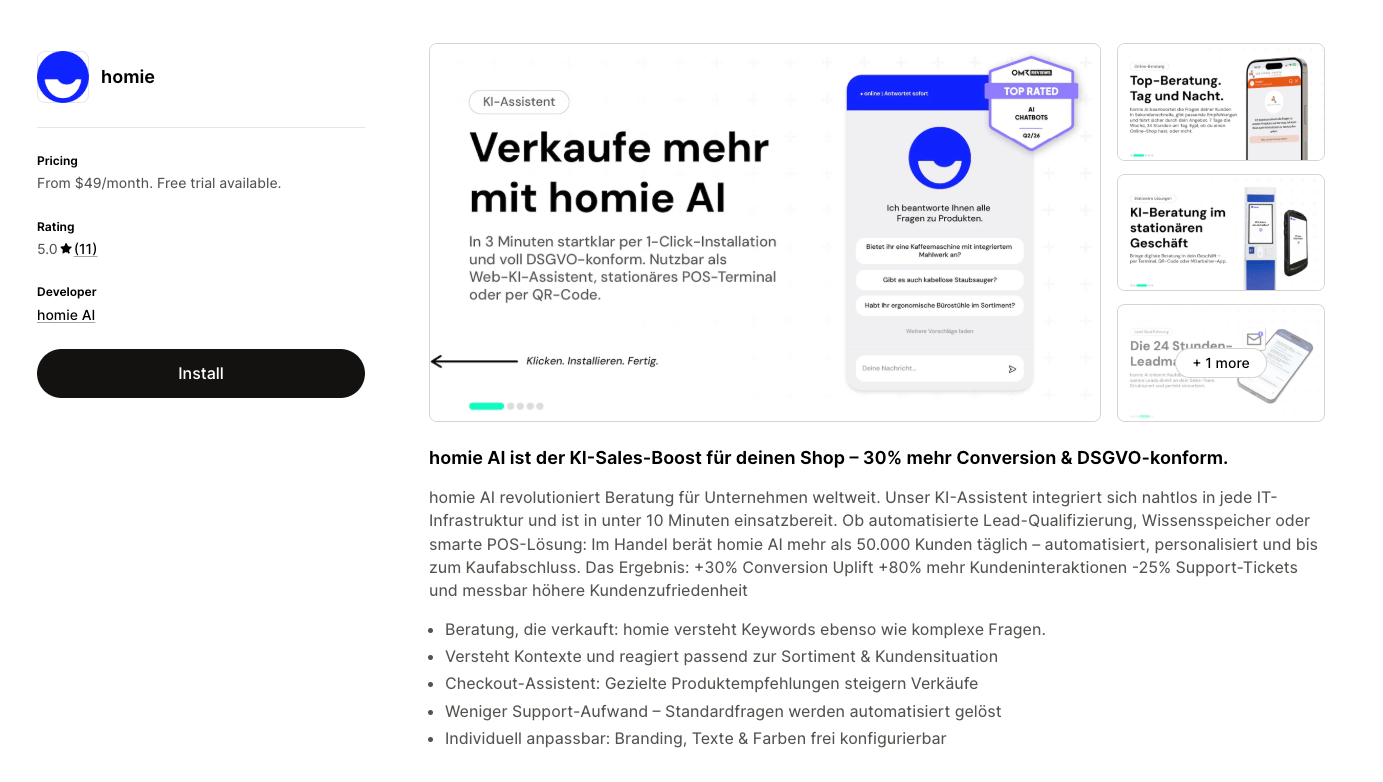
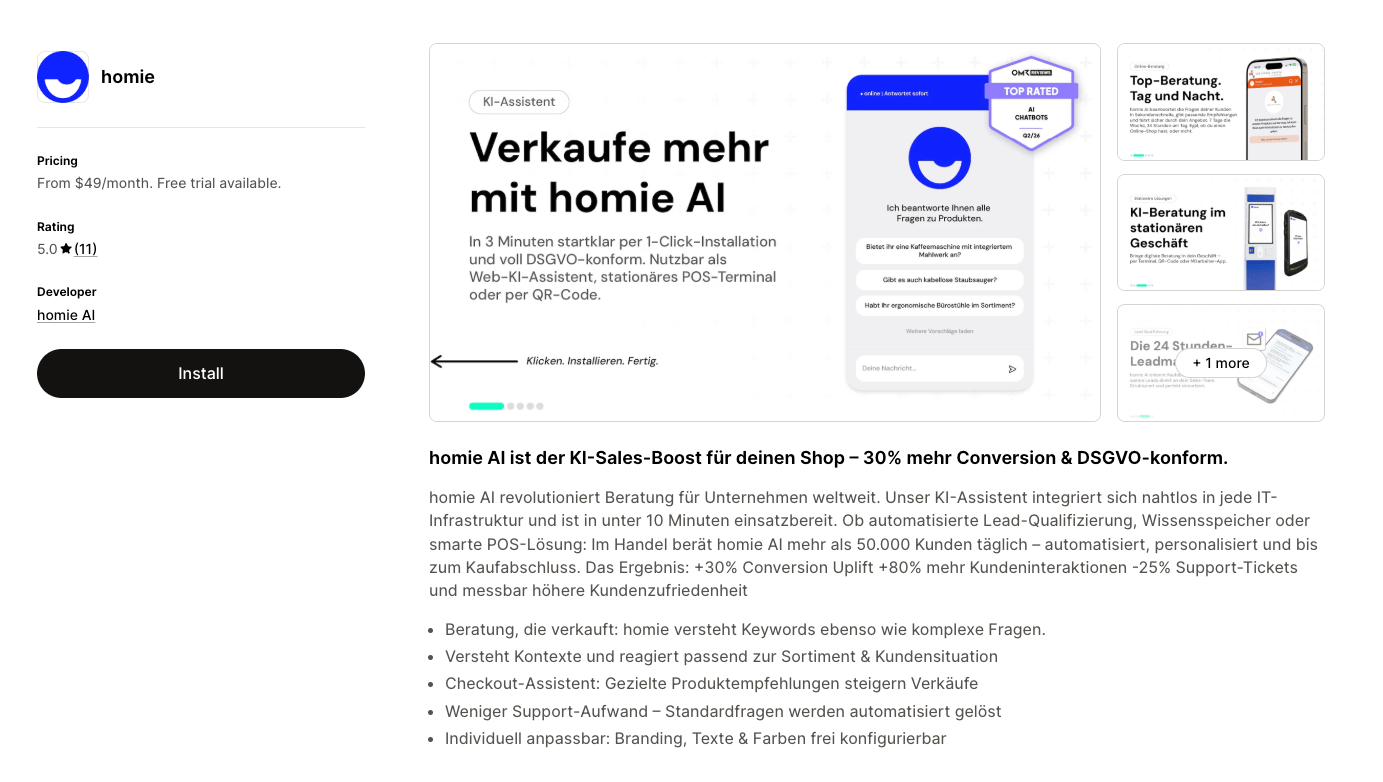 Install the homie AI app for your store and approve the requested permissions. Shopify sends you back to the platform.
That's it — homie AI can now read your live product data, and the assistant uses it right away.
The Shopify card shows **Connected**. Select **View** to open and manage the connection.
## Product data access
The integration gives homie AI **direct access to your store's current product data** — titles, descriptions, variants, prices, availability, and product URLs. Nothing is imported or stored as a separate copy; the assistant reads your live data, so it always answers and recommends with current information.
Because homie reads your product data live, you never need to re-export, upload, or re-sync it — changes you make in Shopify are reflected immediately.
## Manage the connection
Select **View** on the Shopify card to open the connection. You'll see your store details — **Domain**, **Shop URL**, **Access rights**, and **Connected on** — along with the **Conversion Tracking** card.
## Conversion tracking
Conversion tracking attributes purchases back to the conversations that influenced them, so you can see which chats led to a sale. It is **off by default** and set up in two steps in the **Conversion Tracking** card:
homie AI needs permission to place a lightweight tracking pixel in your store. Select **Grant permission** and approve it in Shopify. homie AI only reads that a checkout happened — no customer or order data is processed or stored.
Once permission is granted, use the toggle to enable it. The status then reads **Conversion tracking enabled**; toggle it off any time.
Attributed conversions appear in [Analytics](/en/user-guide/analytics/overview). For the full picture, see [Conversion tracking](/en/user-guide/assistants/conversion-tracking).
Managing the Shopify integration — including granting permission — requires an **owner** or **admin** role.
## Ending the connection
There is no disconnect button in the platform — the Shopify view shows your store details but does not remove the connection.
To end the connection, uninstall the homie AI app from your Shopify admin under **Settings → Apps and sales channels**. This stops product-data access and conversion tracking and removes homie AI's access to your store. The chat widget on your storefront is separate — uninstalling the app does not remove the widget from your theme.
## Next steps
Add the chat bubble to your Shopify storefront.
Attribute purchases back to chatbot conversations.
Install the homie AI app for your store and approve the requested permissions. Shopify sends you back to the platform.
That's it — homie AI can now read your live product data, and the assistant uses it right away.
The Shopify card shows **Connected**. Select **View** to open and manage the connection.
## Product data access
The integration gives homie AI **direct access to your store's current product data** — titles, descriptions, variants, prices, availability, and product URLs. Nothing is imported or stored as a separate copy; the assistant reads your live data, so it always answers and recommends with current information.
Because homie reads your product data live, you never need to re-export, upload, or re-sync it — changes you make in Shopify are reflected immediately.
## Manage the connection
Select **View** on the Shopify card to open the connection. You'll see your store details — **Domain**, **Shop URL**, **Access rights**, and **Connected on** — along with the **Conversion Tracking** card.
## Conversion tracking
Conversion tracking attributes purchases back to the conversations that influenced them, so you can see which chats led to a sale. It is **off by default** and set up in two steps in the **Conversion Tracking** card:
homie AI needs permission to place a lightweight tracking pixel in your store. Select **Grant permission** and approve it in Shopify. homie AI only reads that a checkout happened — no customer or order data is processed or stored.
Once permission is granted, use the toggle to enable it. The status then reads **Conversion tracking enabled**; toggle it off any time.
Attributed conversions appear in [Analytics](/en/user-guide/analytics/overview). For the full picture, see [Conversion tracking](/en/user-guide/assistants/conversion-tracking).
Managing the Shopify integration — including granting permission — requires an **owner** or **admin** role.
## Ending the connection
There is no disconnect button in the platform — the Shopify view shows your store details but does not remove the connection.
To end the connection, uninstall the homie AI app from your Shopify admin under **Settings → Apps and sales channels**. This stops product-data access and conversion tracking and removes homie AI's access to your store. The chat widget on your storefront is separate — uninstalling the app does not remove the widget from your theme.
## Next steps
Add the chat bubble to your Shopify storefront.
Attribute purchases back to chatbot conversations.