> ## Documentation Index
> Fetch the complete documentation index at: https://docs.yourhomie.ai/llms.txt
> Use this file to discover all available pages before exploring further.
# WooCommerce
> Add the homie AI chat widget to your WooCommerce store via your theme footer, a plugin, or functions.php.
WooCommerce runs on WordPress, so you add homie AI by placing the embed script in your site's footer. Use a header/footer plugin (the simplest option), your theme's footer template, or a small `functions.php` hook.
Before you start, make sure you have:
* An assistant created on the platform
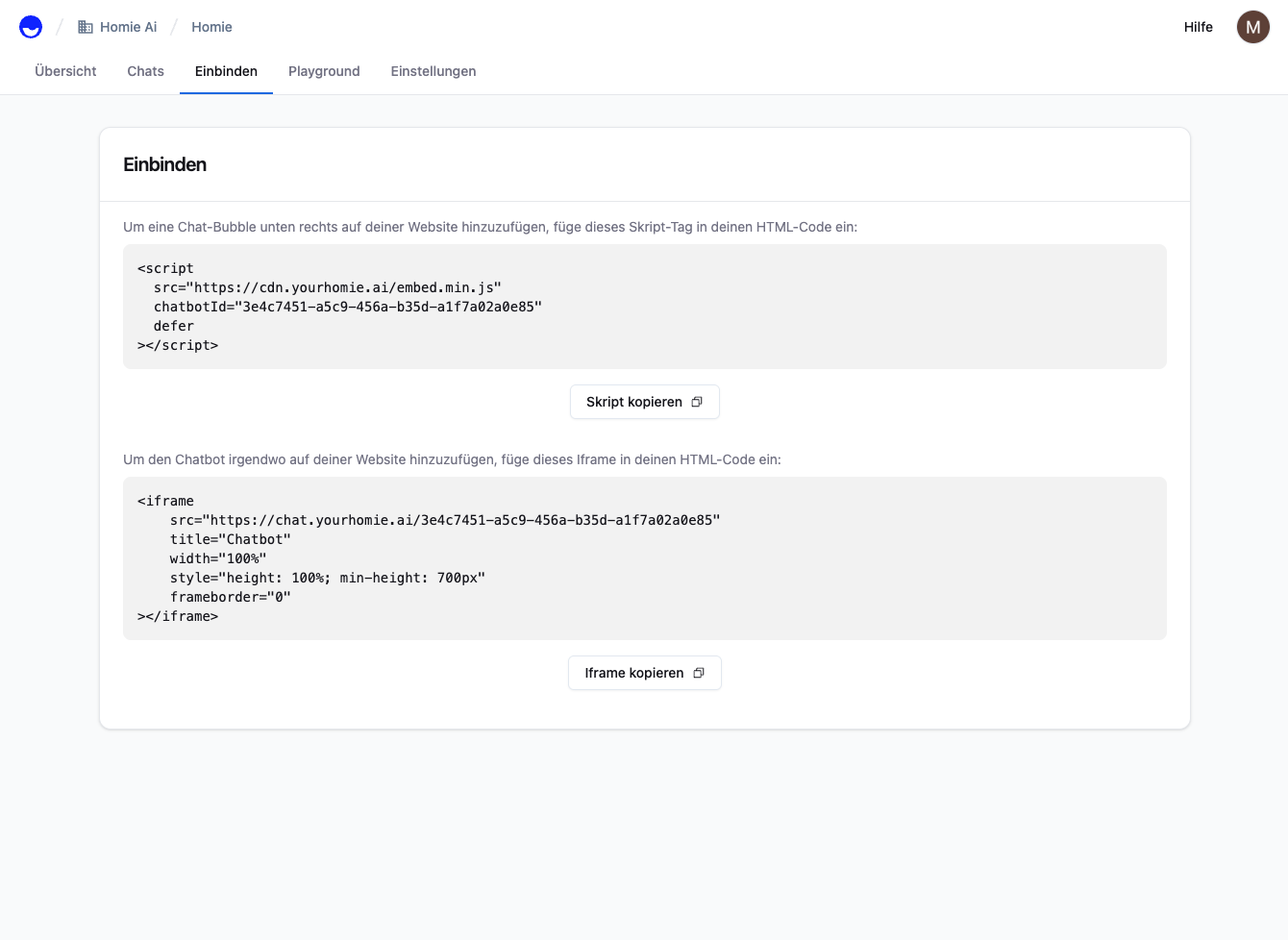
* Your embed script copied from the assistant's **Publish** area
* Admin access to your WordPress site
## Add the script to your site
Open your assistant on the platform, go to its **Publish** area, and copy the script. It already contains your `chatbotId`.
 Pick the method that fits your setup:
Install a plugin such as **Insert Headers and Footers** (or **WPCode**). Open its settings and paste the script into the **Footer** / **Body** section:
```html theme={null}
```
Save. The plugin injects the script on every page.
In your child theme's `functions.php`, hook into `wp_footer`:
```php functions.php theme={null}
add_action('wp_footer', function () {
?>
In your theme editor, open `footer.php` and paste the script just before the closing `` tag. Use a child theme so your change survives theme updates.
Pick the method that fits your setup:
Install a plugin such as **Insert Headers and Footers** (or **WPCode**). Open its settings and paste the script into the **Footer** / **Body** section:
```html theme={null}
```
Save. The plugin injects the script on every page.
In your child theme's `functions.php`, hook into `wp_footer`:
```php functions.php theme={null}
add_action('wp_footer', function () {
?>
In your theme editor, open `footer.php` and paste the script just before the closing `` tag. Use a child theme so your change survives theme updates.