> ## Documentation Index
> Fetch the complete documentation index at: https://docs.yourhomie.ai/llms.txt
> Use this file to discover all available pages before exploring further.
# Shopware
> Add the homie AI chat widget to your Shopware storefront via your theme template or a CMS block.
You can add homie AI to Shopware by placing the embed script in your storefront so it loads on every page. Add it once to your theme layout, or insert it through a CMS (Shopping Experiences) HTML block.
Before you start, make sure you have:
* An assistant created on the platform
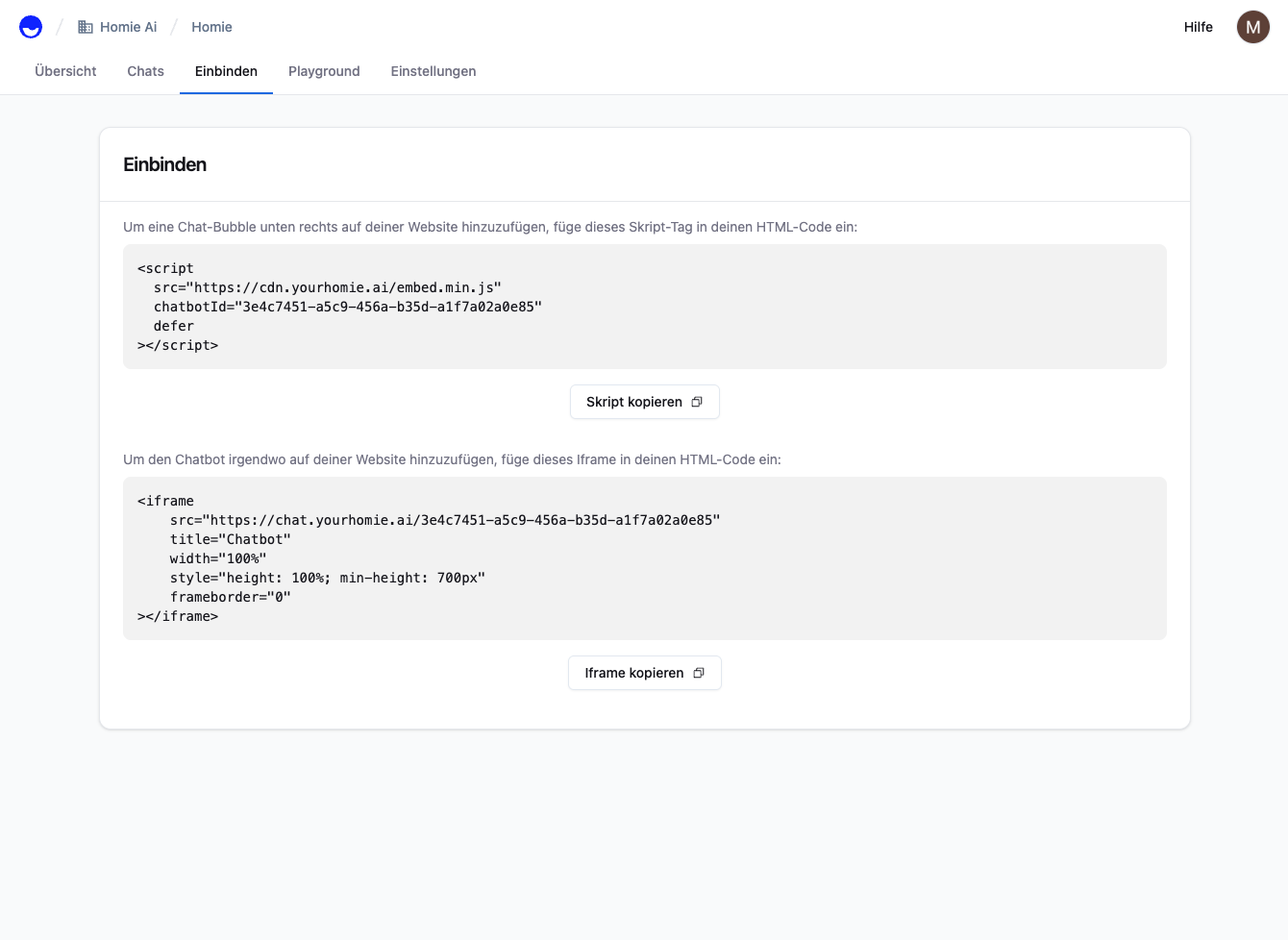
* Your embed script copied from the assistant's **Publish** area
* Access to your Shopware theme files or the CMS editor
## Add the script to your storefront
Open your assistant on the platform, go to its **Publish** area, and copy the script. It already contains your `chatbotId`.
 In your theme (or a custom theme that extends the storefront), open the base layout template — typically `Resources/views/storefront/base.html.twig`. Override it in your own theme rather than editing the core template directly.
Add the script just before the closing `` tag, inside a Twig block so it renders on every storefront page:
```twig base.html.twig theme={null}
{% block base_body_script %}
{{ parent() }}
In your theme (or a custom theme that extends the storefront), open the base layout template — typically `Resources/views/storefront/base.html.twig`. Override it in your own theme rather than editing the core template directly.
Add the script just before the closing `` tag, inside a Twig block so it renders on every storefront page:
```twig base.html.twig theme={null}
{% block base_body_script %}
{{ parent() }}