> ## Documentation Index
> Fetch the complete documentation index at: https://docs.yourhomie.ai/llms.txt
> Use this file to discover all available pages before exploring further.

# Shopify

> Add the homie AI chat widget to your Shopify store — the easy way with the homie Shopify app, or manually via your theme.

The easiest way to add homie AI to Shopify is the official **homie Shopify app**: install it and switch the widget on in the Shopify **Theme Editor** — one click, no code. If you'd rather not use the app, you can paste the embed script into your theme manually.

<Note>
  Before you start, make sure you have an assistant created on the platform and access to your Shopify admin.
</Note>

## Recommended: the homie Shopify app

<Steps>
  <Step title="Install the homie Shopify app">
    Open your assistant's **Publish** area on the platform, choose **Shopify**, and select **To the Shopify app** (or install the homie app directly from the Shopify App Store). It installs with one click and needs no code changes.
  </Step>

  <Step title="Open the Theme Editor">
    Back on the platform, select **Open theme editor** to jump straight to your store's Theme Editor.
  </Step>

  <Step title="Enable homie and enter your assistant ID">
    In the Theme Editor's app embeds, turn on the **homie** embed, paste your **assistant ID** (copy it from the Publish area), and activate it.
  </Step>

  <Step title="Save">
    Click **Save** in the Theme Editor.
  </Step>
</Steps>

<Check>
  Refresh your store. The homie chat bubble appears in the bottom-right corner. Open it and send a test message.
</Check>

<Note>
  Installing the app also connects your Shopify store, so your product catalog stays in sync and you can turn on conversion tracking. See the [Shopify integration](/en/user-guide/integrations/shopify) for the data and conversion side.
</Note>

## Alternative: paste the embed script

If you can't or don't want to use the Theme Editor, add the embed script to your theme manually.

<Steps>
  <Step title="Copy your embed script">
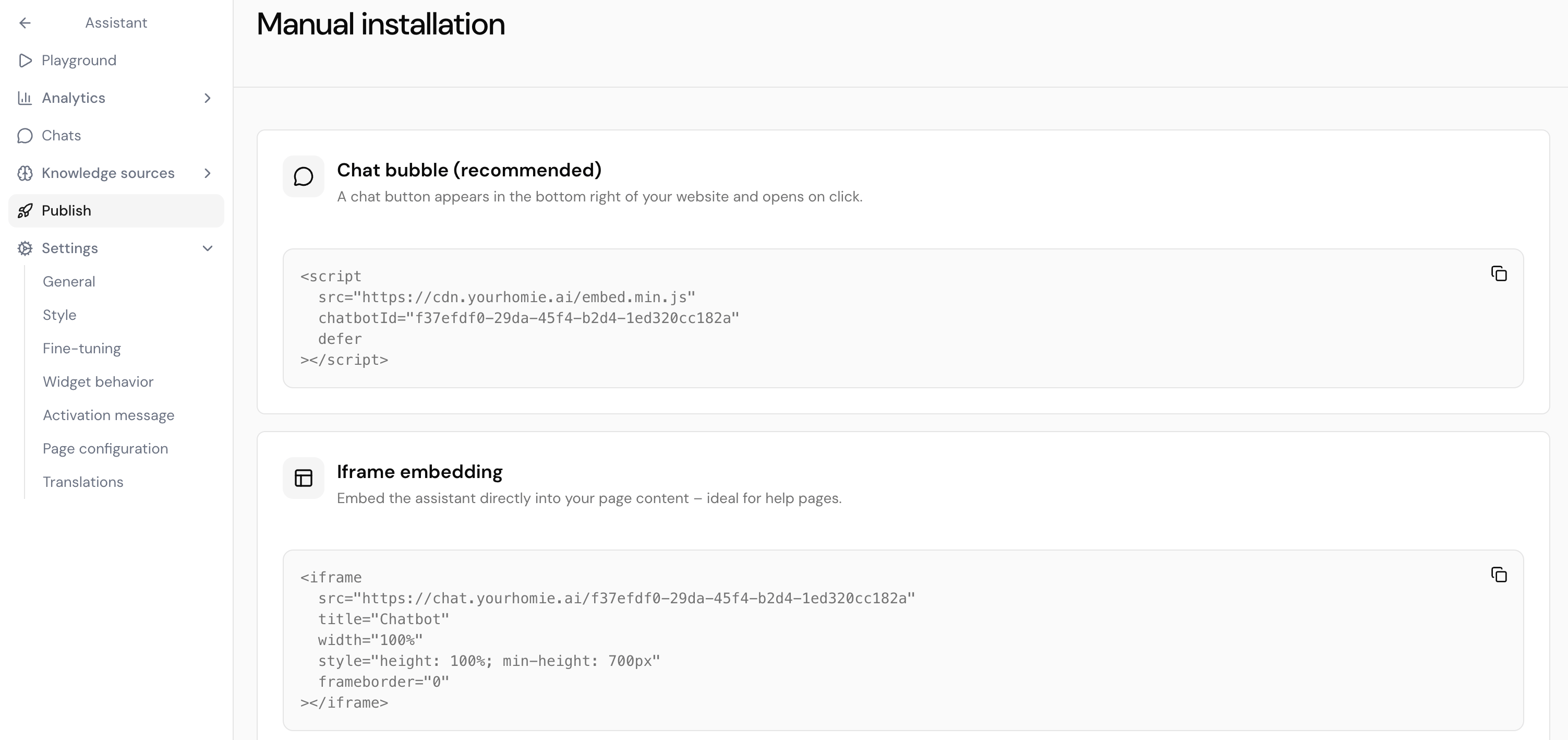
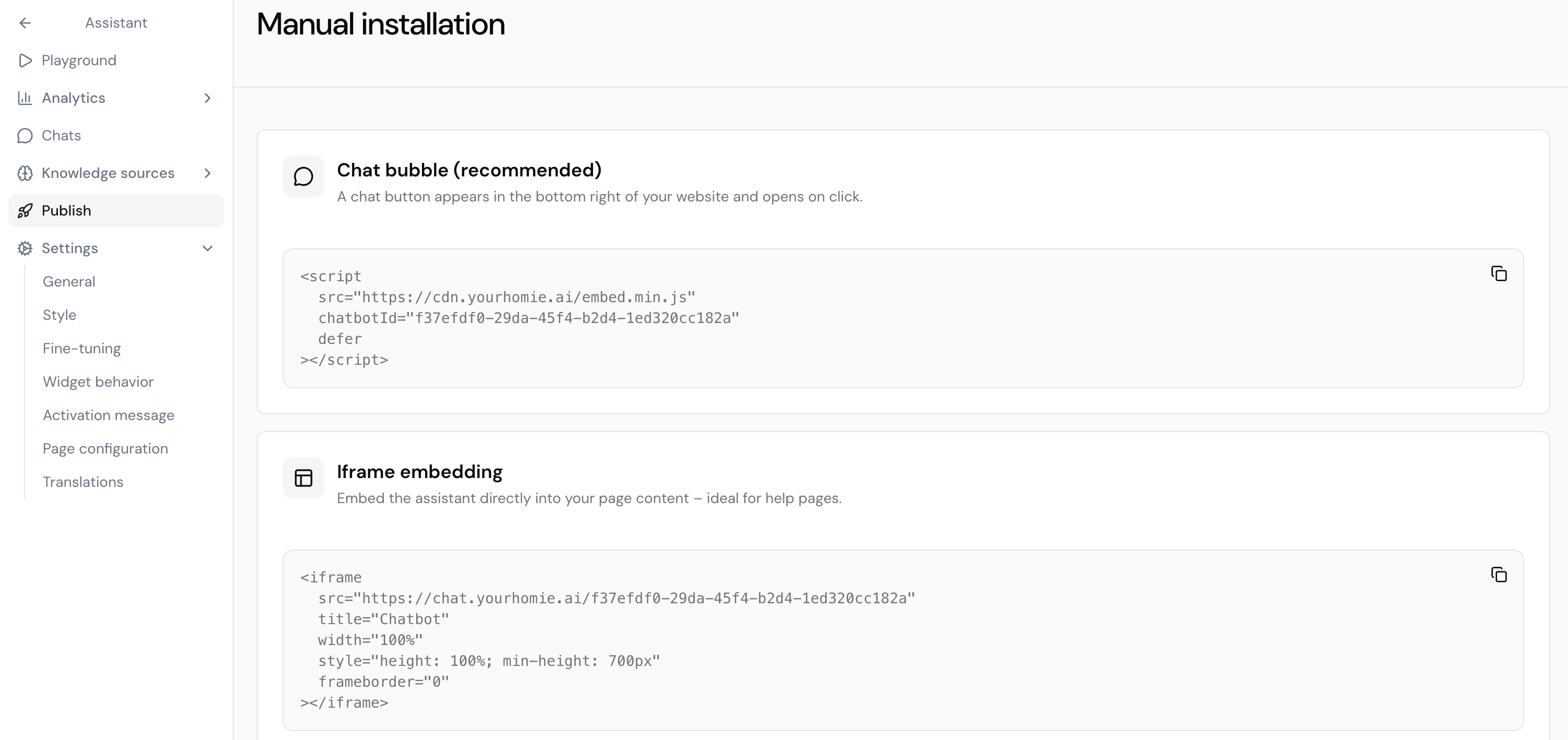
    Open your assistant on the platform, go to its **Publish** area, and copy the script. It already contains your `chatbotId`.
    <Frame>
      <img src="https://mintcdn.com/homieai/m0ZcYuq9OdpATfdE/images/Bildschirmfoto-2026-07-01-um-10.29.47.png?fit=max&auto=format&n=m0ZcYuq9OdpATfdE&q=85&s=71e139102f4f443ca1e79b345f64fb61" alt="Platform Publish area showing the copyable Shopify script snippet" lightAlt="Platform Publish area showing the copyable Shopify script snippet" darkAlt="Platform Publish area showing the copyable Shopify script snippet" className="dark:hidden" width="3006" height="1418" data-path="images/Bildschirmfoto-2026-07-01-um-10.29.47.png" />

      <img src="https://mintcdn.com/homieai/m0ZcYuq9OdpATfdE/images/Bildschirmfoto-2026-07-01-um-10.29.47-1.png?fit=max&auto=format&n=m0ZcYuq9OdpATfdE&q=85&s=425929cfd0fff299c68a09367f62bf04" alt="Platform Publish area showing the copyable Shopify script snippet" lightAlt="Platform Publish area showing the copyable Shopify script snippet" darkAlt="Platform Publish area showing the copyable Shopify script snippet" className="hidden dark:block" width="3006" height="1418" data-path="images/Bildschirmfoto-2026-07-01-um-10.29.47-1.png" />
    </Frame>
  </Step>

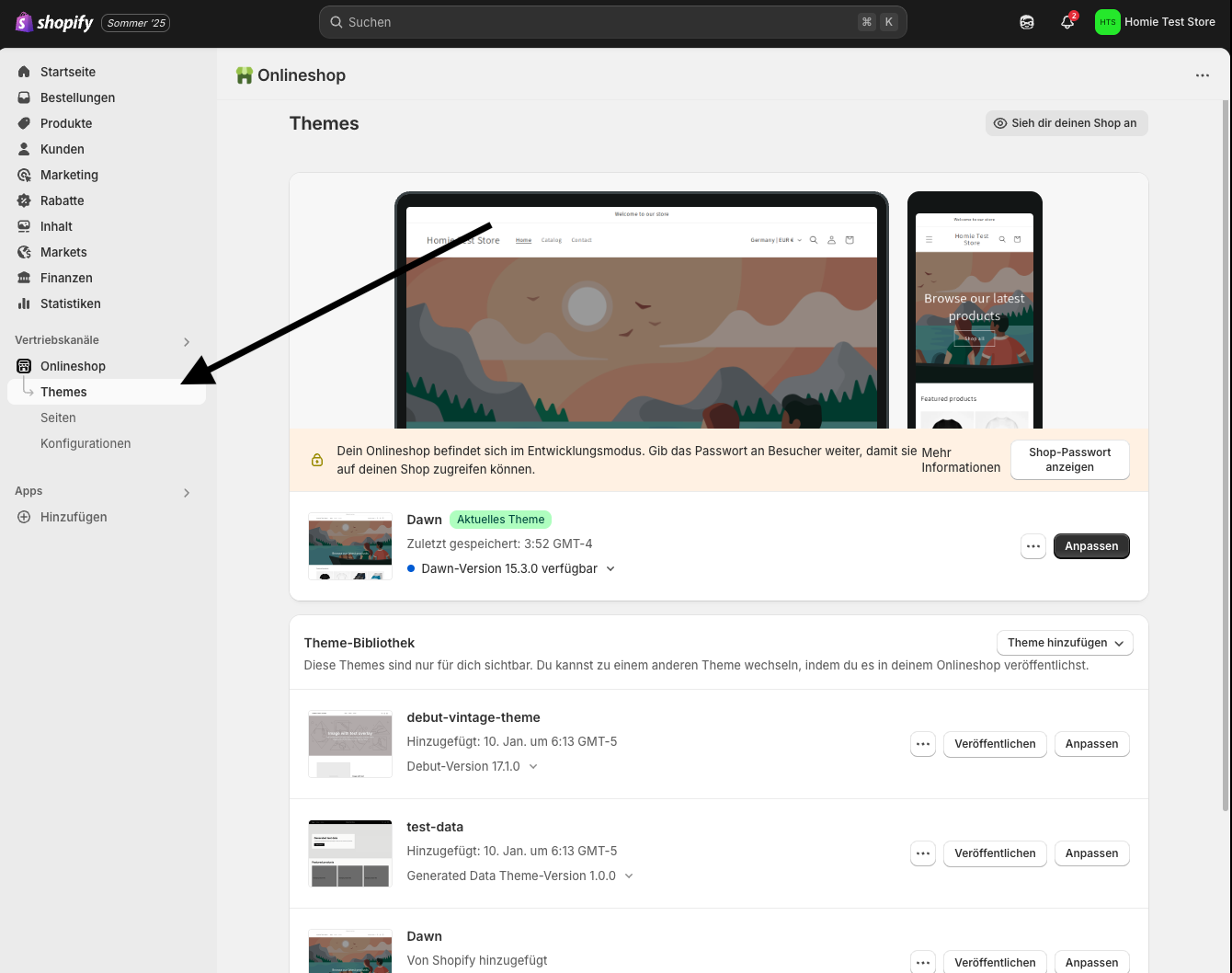
  <Step title="Open Themes in Shopify">
    In your Shopify admin, go to **Online Store → Themes**.
    <Frame>
      <img src="https://mintcdn.com/homieai/t1ZSM74lXOpzsQLS/images/integrations/shopify/shopify-first-step.png?fit=max&auto=format&n=t1ZSM74lXOpzsQLS&q=85&s=9b39ff524f22bab4ba502615929b9c65" alt="Shopify admin navigating to Online Store Themes" width="1340" height="1058" data-path="images/integrations/shopify/shopify-first-step.png" />
    </Frame>
  </Step>

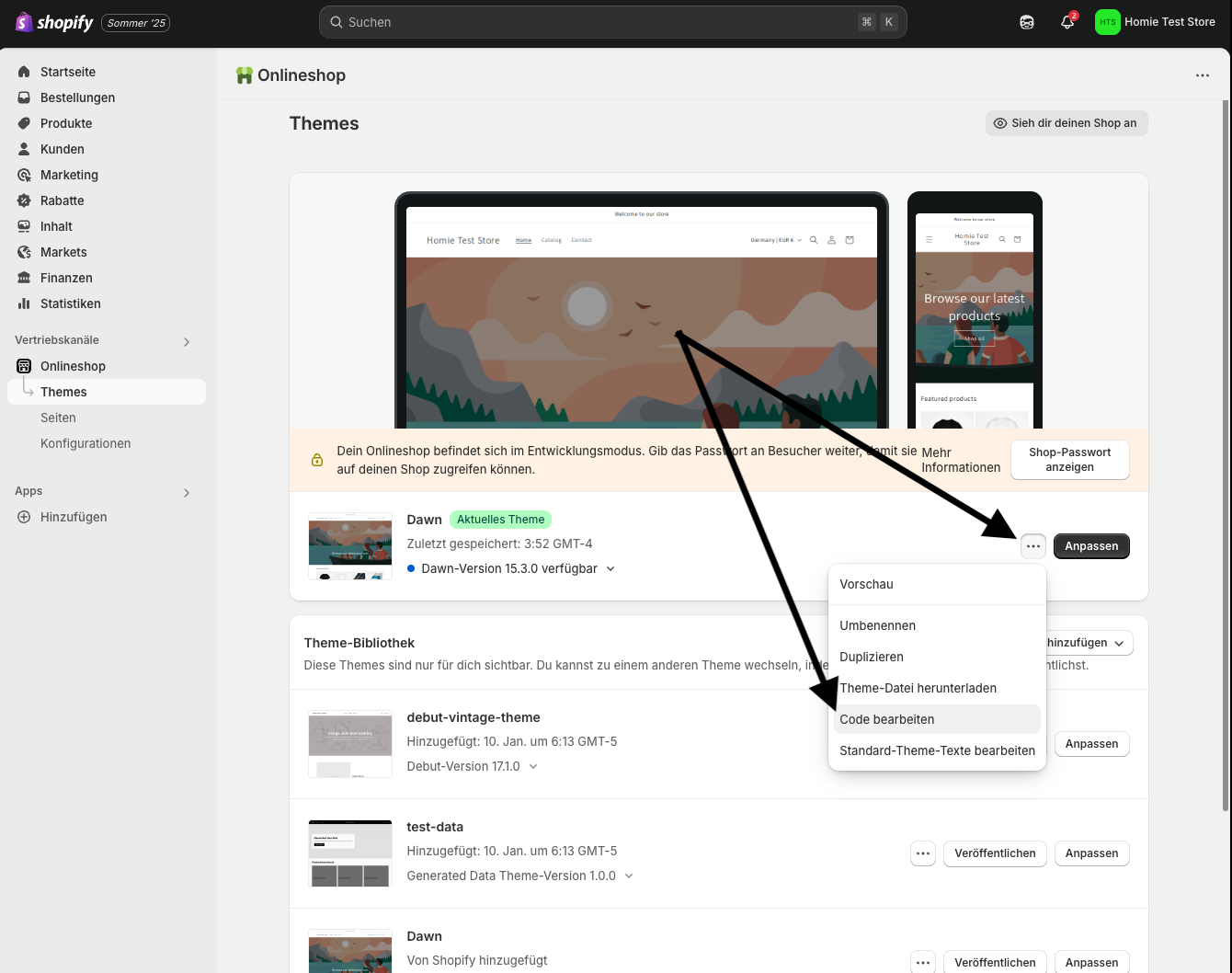
  <Step title="Edit your theme code">
    Open the **•••** menu next to your live theme and choose **Edit code**.
    <Frame>
      <img src="https://mintcdn.com/homieai/t1ZSM74lXOpzsQLS/images/integrations/shopify/shopify-secound-step.png?fit=max&auto=format&n=t1ZSM74lXOpzsQLS&q=85&s=16b06b9445bcd4e0920ed8797b2c23e0" alt="Shopify theme menu with the Edit code action highlighted" width="1340" height="1058" data-path="images/integrations/shopify/shopify-secound-step.png" />
    </Frame>
  </Step>

  <Step title="Paste before the closing body tag and save">
    1. In the sidebar, open **layout/theme.liquid**.
    2. Scroll to the bottom, just above the closing `</body>` tag.
    3. Paste the script you copied.
    4. Click **Save**.

    <Frame>
      <img src="https://mintcdn.com/homieai/t1ZSM74lXOpzsQLS/images/integrations/shopify/shopify-last-step.png?fit=max&auto=format&n=t1ZSM74lXOpzsQLS&q=85&s=edf7173d23be797f40c744788eca78da" alt="theme.liquid with the homie script pasted before the closing body tag" width="1490" height="888" data-path="images/integrations/shopify/shopify-last-step.png" />
    </Frame>
  </Step>
</Steps>

```html theme.liquid theme={null}
<script
  src="https://cdn.yourhomie.ai/embed.min.js"
  chatbotId="YOUR-CHATBOT-ID"
  platform="shopify"
  defer
></script>
```

<Tip>
  Adding `platform="shopify"` lets the widget forward Shopify market context (such as country and currency) to your assistant.
</Tip>

## Troubleshooting

* **No bubble showing?** Clear your cache or open the store in an incognito window.
* **Multiple themes?** Enable homie (or add the script) on every theme you publish.
* **Need a different position or color?** Adjust it on the platform under your assistant's appearance settings.

For deeper configuration and methods, see the [Client API](/en/api-reference/client/overview).

## Next steps

<CardGroup cols={2}>
  <Card title="Shopify integration" icon="shopify" href="/en/user-guide/integrations/shopify">
    Sync your product catalog and attribute purchases to conversations.
  </Card>

  <Card title="Client API" icon="code" href="/en/api-reference/client/overview">
    Configure the widget and call methods from your site.
  </Card>
</CardGroup>
