> ## Documentation Index
> Fetch the complete documentation index at: https://docs.yourhomie.ai/llms.txt
> Use this file to discover all available pages before exploring further.
# Magento
> Add the homie AI chat widget to your Magento 2 store via layout XML or the footer miscellaneous HTML setting.
You can add homie AI to Magento 2 without writing a module. The quickest path is the admin **Content → Configuration** footer miscellaneous HTML setting; for theme-level control, add the script through layout XML.
Before you start, make sure you have:
* An assistant created on the platform
* Your embed script copied from the assistant's **Publish** area
* Admin access to your Magento 2 store
## Add the script to your storefront
Open your assistant on the platform, go to its **Publish** area, and copy the script. It already contains your `chatbotId`.
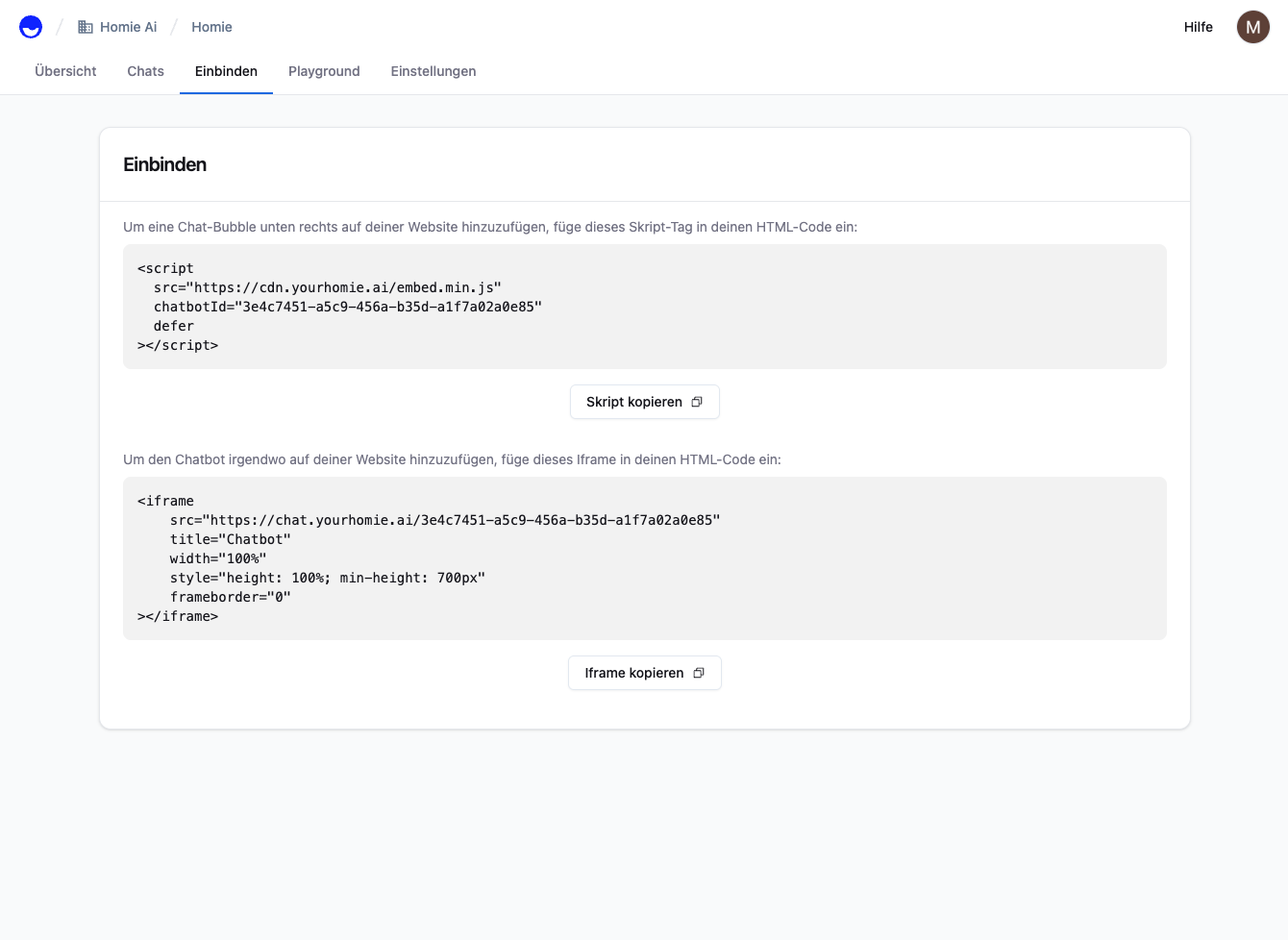 In the Magento admin, go to **Content → Design → Configuration**, edit the relevant store view, and open **HTML Head** or **Footer**. Paste the script into **Miscellaneous HTML** (footer):
```html theme={null}
```
Save the configuration.
In your custom theme, add a block to `default.xml` that references a small template containing the script, or use a `` with the script in the `before.body.end` container:
```xml default.xml theme={null}
```
Place the embed `
In the Magento admin, go to **Content → Design → Configuration**, edit the relevant store view, and open **HTML Head** or **Footer**. Paste the script into **Miscellaneous HTML** (footer):
```html theme={null}
```
Save the configuration.
In your custom theme, add a block to `default.xml` that references a small template containing the script, or use a `` with the script in the `before.body.end` container:
```xml default.xml theme={null}
```
Place the embed `