> ## Documentation Index
> Fetch the complete documentation index at: https://docs.yourhomie.ai/llms.txt
> Use this file to discover all available pages before exploring further.
# Widget Behavior
> Control how the chat widget is displayed on the web — display mode, stacking order, and hiding overlapping elements.
Widget behavior controls how the chat widget is displayed and how it layers with other elements on the page. Go to **Assistants** in the [homie platform](https://app.yourhomie.ai), select your assistant, and open **Settings → Widget behavior**.
 ## Display mode
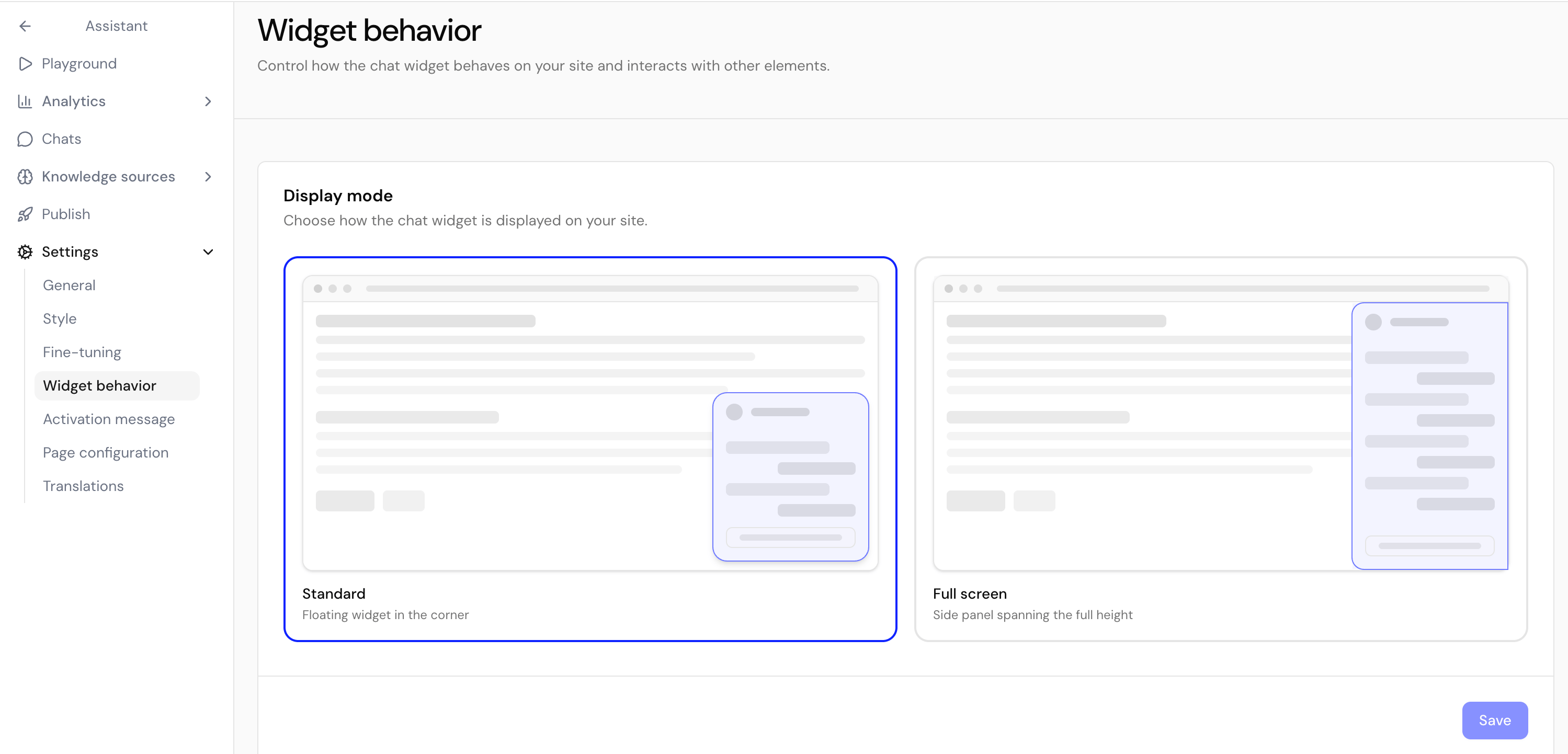
Pick **Standard** (a floating widget in the corner) or **Full screen** (a side panel spanning the full height of the page).
## Z-index
Adjust the widget's stacking order so it appears above menus, cookie banners, and other overlays. Increase the value if another element covers the widget.
## Hide overlapping elements
Optionally hide third-party widgets (such as Trusted Shops) that would overlap the chat when it opens. Add an element by the start of its `id` and choose whether to hide it everywhere, on mobile only, or on desktop only.
The launcher's position (left or right) is part of [Appearance](/en/user-guide/assistants/appearance), not Widget behavior.
## Next steps
Invite visitors to chat with a proactive bubble.
Set page-specific messages and hide the widget where needed.
## Display mode
Pick **Standard** (a floating widget in the corner) or **Full screen** (a side panel spanning the full height of the page).
## Z-index
Adjust the widget's stacking order so it appears above menus, cookie banners, and other overlays. Increase the value if another element covers the widget.
## Hide overlapping elements
Optionally hide third-party widgets (such as Trusted Shops) that would overlap the chat when it opens. Add an element by the start of its `id` and choose whether to hide it everywhere, on mobile only, or on desktop only.
The launcher's position (left or right) is part of [Appearance](/en/user-guide/assistants/appearance), not Widget behavior.
## Next steps
Invite visitors to chat with a proactive bubble.
Set page-specific messages and hide the widget where needed.