> ## Documentation Index
> Fetch the complete documentation index at: https://docs.yourhomie.ai/llms.txt
> Use this file to discover all available pages before exploring further.
# Playground
> Test your assistant live in the Playground before and after publishing changes.
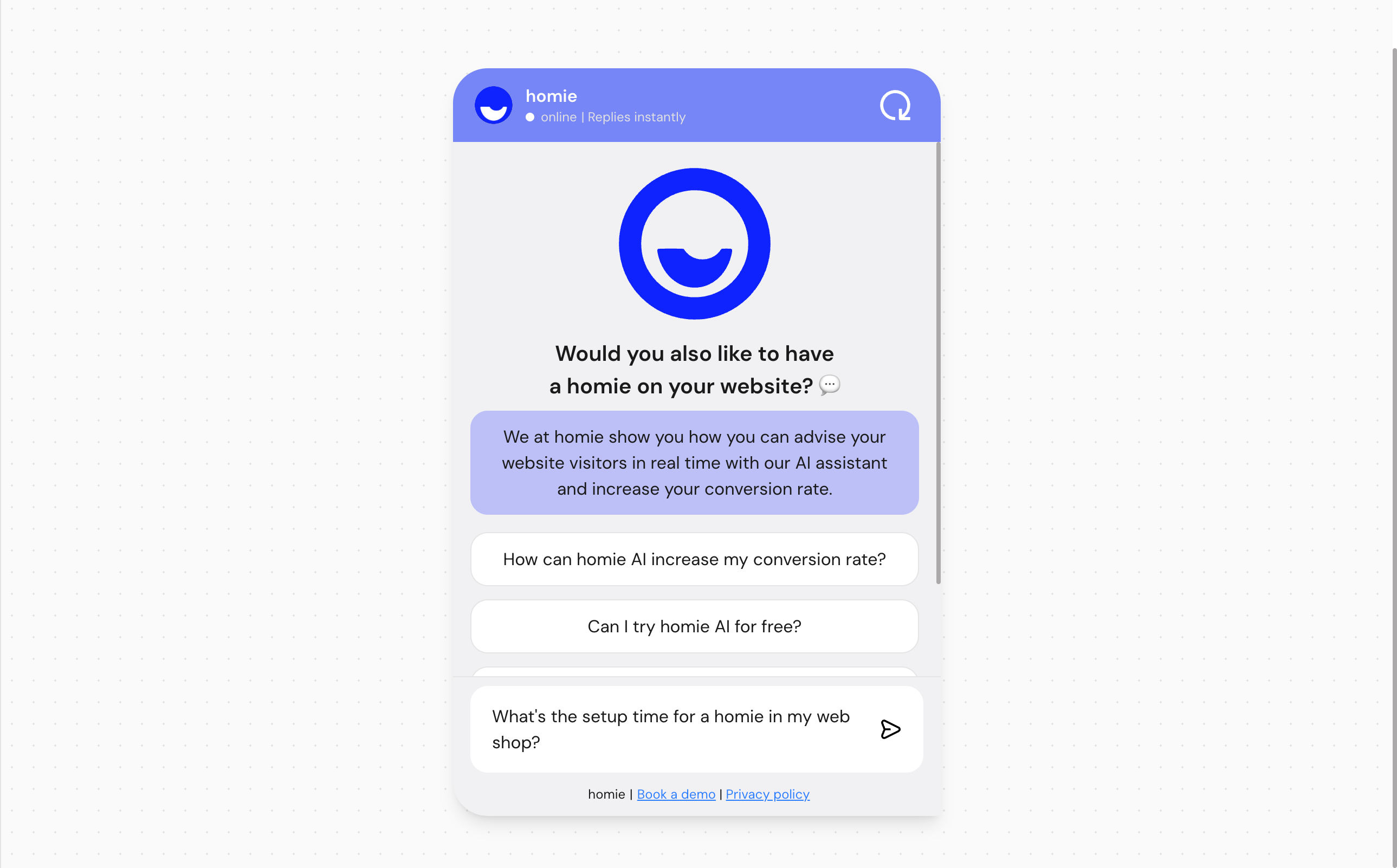
The Playground is a private chat where you can talk to your assistant exactly as a customer would, without affecting your live website. Use it to verify answers, tone, and product recommendations before you publish.
## Open the Playground
Go to **Assistants** in the [homie platform](https://app.yourhomie.ai) and select the assistant you want to test.
Open the **Playground** tab to start a fresh conversation with the assistant.
Type a question the way a real shopper would and review how the assistant responds.
 ## Simulate the environment
By default the Playground talks to the assistant with no page context. To test realistic scenarios, select **Simulate environment** in the top-right corner to open the **Test parameters** dialog and adjust:
* **Simulate website** — a page URL (for example `https://example.com/product/123`). The assistant responds as if it were opened on that specific page, so you can test page- and product-aware answers.
* **Store ID** — for multi-location stores, simulate location-specific responses for a given store (for example `store-berlin-001`).
* **Language** — override the language used in the Playground. By default it uses the assistant's default language.
Select **Save** to apply. The conversation restarts with the simulated context.
## What to look for
When testing, pay attention to whether the assistant:
* Answers questions accurately and stays on topic.
* Uses the right tone and personality for your brand.
* Recommends relevant products at the right moment.
* Handles questions it does not know gracefully, instead of inventing answers.
* Responds in the expected language.
Test the Playground again after every change to your knowledge or fine-tuning. Updated content and tone settings change how the assistant answers, so a quick re-test confirms the change behaves as you intended.
The Playground reflects your saved configuration and current knowledge. If an answer looks wrong, check your knowledge sources and fine-tuning before publishing.
## Next steps
Adjust tone and product-recommendation behavior.
Improve answers by expanding what your assistant knows.
## Simulate the environment
By default the Playground talks to the assistant with no page context. To test realistic scenarios, select **Simulate environment** in the top-right corner to open the **Test parameters** dialog and adjust:
* **Simulate website** — a page URL (for example `https://example.com/product/123`). The assistant responds as if it were opened on that specific page, so you can test page- and product-aware answers.
* **Store ID** — for multi-location stores, simulate location-specific responses for a given store (for example `store-berlin-001`).
* **Language** — override the language used in the Playground. By default it uses the assistant's default language.
Select **Save** to apply. The conversation restarts with the simulated context.
## What to look for
When testing, pay attention to whether the assistant:
* Answers questions accurately and stays on topic.
* Uses the right tone and personality for your brand.
* Recommends relevant products at the right moment.
* Handles questions it does not know gracefully, instead of inventing answers.
* Responds in the expected language.
Test the Playground again after every change to your knowledge or fine-tuning. Updated content and tone settings change how the assistant answers, so a quick re-test confirms the change behaves as you intended.
The Playground reflects your saved configuration and current knowledge. If an answer looks wrong, check your knowledge sources and fine-tuning before publishing.
## Next steps
Adjust tone and product-recommendation behavior.
Improve answers by expanding what your assistant knows.