> ## Documentation Index
> Fetch the complete documentation index at: https://docs.yourhomie.ai/llms.txt
> Use this file to discover all available pages before exploring further.
# Page Configuration
> Use per-URL rules to hide the widget, override the launcher label, or set page-specific messages.
Page configuration lets you tailor the assistant per page. Using URL patterns, you can hide the widget on certain pages, override the launcher label, and show page-specific welcome and activation messages — so the assistant fits the context of each part of your store.
Page configuration applies to **web** assistants embedded on a website.
## Open page configuration
Go to **Assistants** in the [homie platform](https://app.yourhomie.ai), select your assistant, and open **Settings → Page configuration**.
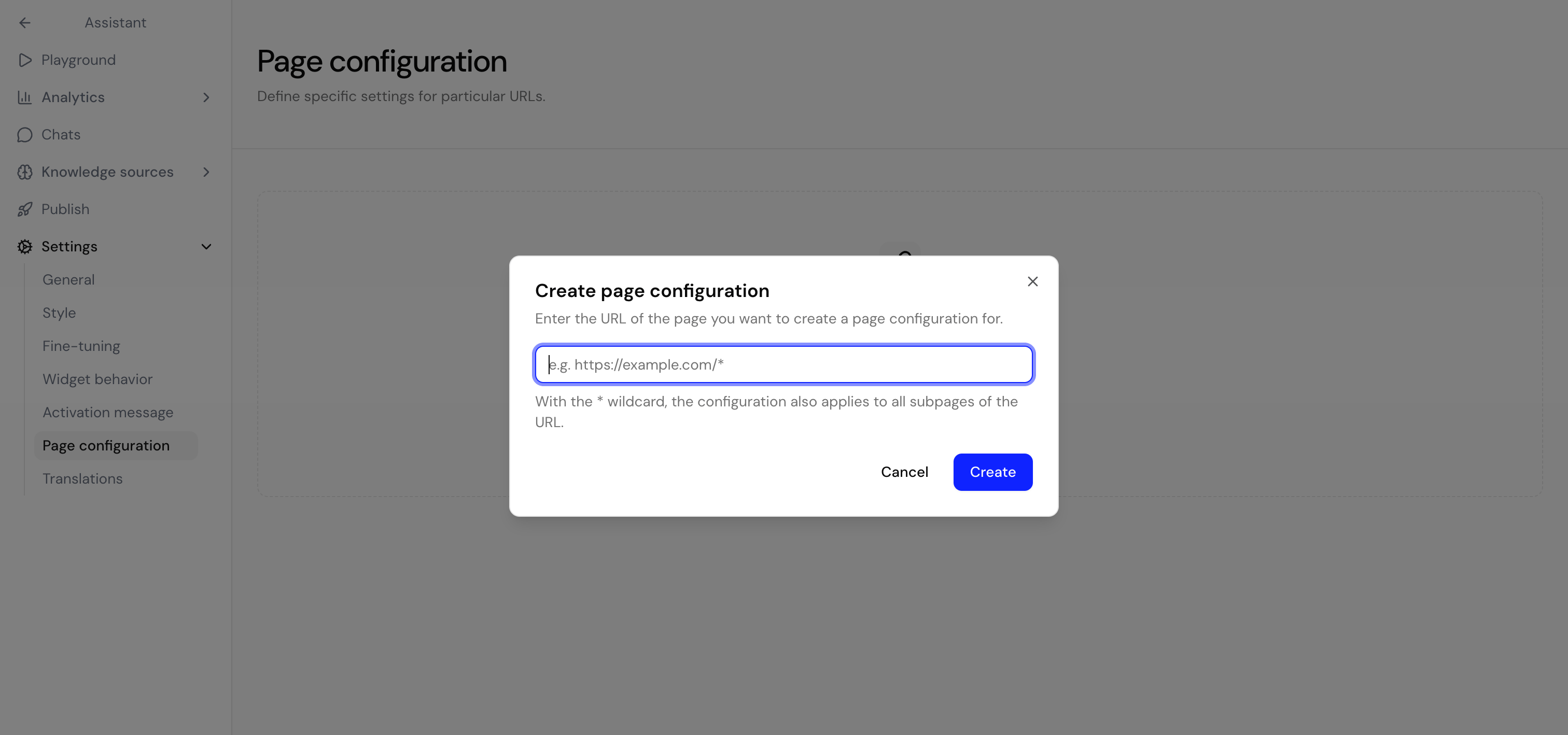
Click **Create** to add a new URL configuration.
 ## URL patterns
Always specify the **full URL** including `https://` and the domain (for example `https://yourshop.com/products/*`). Path-only patterns like `/products/*` will not match. Use `*` in the path as a wildcard for any characters.
Use the `*` wildcard to match multiple pages with one rule:
| Pattern | Matches |
| --------------------------------- | --------------------------------------------------------------------------- |
| `https://yourshop.com/products/*` | All pages under `/products`, such as individual product pages |
| `https://yourshop.com/search*` | The search page, including query strings such as `?q=shoes` |
| `https://yourshop.com/checkout` | The `/checkout` page (trailing query strings and `#` fragments still match) |
An exact rule (no wildcard) always takes priority over a wildcard rule. When several wildcard rules match, the most specific one — the one with the most non-wildcard characters — wins.
Use `*` to configure an entire section of your site with one rule. Always include the full domain and start the pattern with `https://`.
## Per-page options
After creating a URL rule, configure how the assistant behaves on matching pages.
### Hide the chatbot
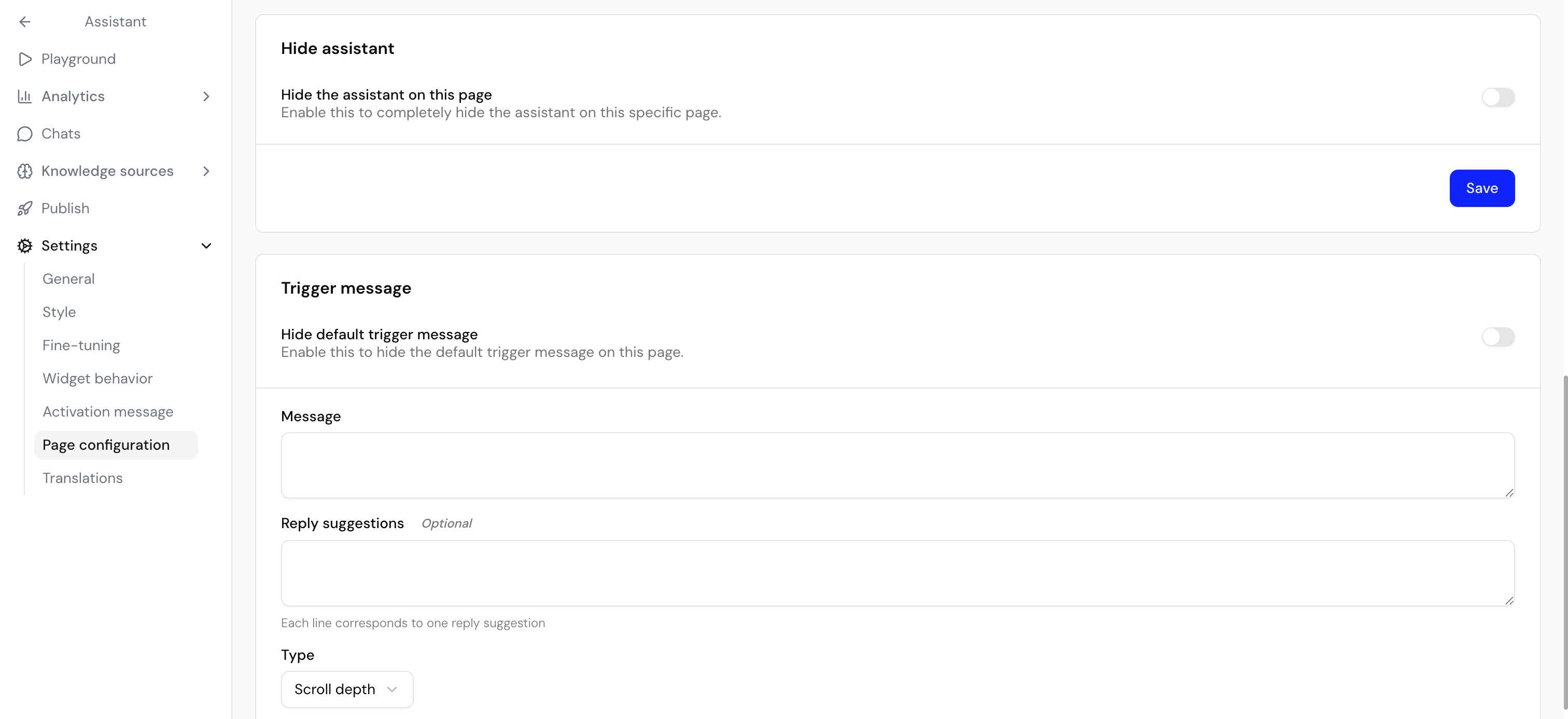
Enable this option to completely hide the widget on pages matching the pattern — useful on checkout or other focused pages.
## URL patterns
Always specify the **full URL** including `https://` and the domain (for example `https://yourshop.com/products/*`). Path-only patterns like `/products/*` will not match. Use `*` in the path as a wildcard for any characters.
Use the `*` wildcard to match multiple pages with one rule:
| Pattern | Matches |
| --------------------------------- | --------------------------------------------------------------------------- |
| `https://yourshop.com/products/*` | All pages under `/products`, such as individual product pages |
| `https://yourshop.com/search*` | The search page, including query strings such as `?q=shoes` |
| `https://yourshop.com/checkout` | The `/checkout` page (trailing query strings and `#` fragments still match) |
An exact rule (no wildcard) always takes priority over a wildcard rule. When several wildcard rules match, the most specific one — the one with the most non-wildcard characters — wins.
Use `*` to configure an entire section of your site with one rule. Always include the full domain and start the pattern with `https://`.
## Per-page options
After creating a URL rule, configure how the assistant behaves on matching pages.
### Hide the chatbot
Enable this option to completely hide the widget on pages matching the pattern — useful on checkout or other focused pages.
 ### Override the launcher hint text
Set a page-specific hint text (hover label) for the launcher so the call to action matches the page — for example "Need help checking out?" on the cart page.
### Initial message
Set a custom welcome message that appears when the chat is first opened on matching pages. This overrides the default welcome message. You can use **bold** or *italic* markdown.
**Example:**
```text theme={null}
Welcome! Need help finding the perfect product? I'm here to assist you.
```
### Suggested messages
Provide page-specific quick-reply prompts shown in the chat. Each line is one suggested message.
**Example:**
```text theme={null}
What are your shipping options?
Do you have this in a different size?
How do I track my order?
```
### Page-specific activation message
Show an activation message tailored to the page, with its own message, optional reply suggestions, trigger type, threshold, delay, and repeat time.
* **Scroll depth** — triggers at a percentage of the page (0–100).
* **Time on page** — triggers after a number of seconds.
## Use cases
### Search page
For `https://yourshop.com/search*`:
* **Initial message:** "Hi! Need help finding something? I can assist with your search."
* **Activation message:** "Looking for something specific? Let me help you find it!" (triggers at 30% scroll depth)
### Checkout page
For `https://yourshop.com/checkout`:
* **Hide chatbot:** enabled, to avoid distraction during checkout, or
* **Initial message:** "Almost done! Need help with payment or shipping options?"
## Troubleshooting
Check that the URL pattern matches your page URLs exactly, including the full domain and any query parameters.
Make sure the pattern starts with `https://` and includes your domain. Use `*` in the path to match multiple pages.
Increase the repeat cooldown so the bubble shows less often.
Confirm the activation message is set to active for the rule.
## Next steps
Configure the global display mode and Activation message.
Localize page-specific labels and messages.
### Override the launcher hint text
Set a page-specific hint text (hover label) for the launcher so the call to action matches the page — for example "Need help checking out?" on the cart page.
### Initial message
Set a custom welcome message that appears when the chat is first opened on matching pages. This overrides the default welcome message. You can use **bold** or *italic* markdown.
**Example:**
```text theme={null}
Welcome! Need help finding the perfect product? I'm here to assist you.
```
### Suggested messages
Provide page-specific quick-reply prompts shown in the chat. Each line is one suggested message.
**Example:**
```text theme={null}
What are your shipping options?
Do you have this in a different size?
How do I track my order?
```
### Page-specific activation message
Show an activation message tailored to the page, with its own message, optional reply suggestions, trigger type, threshold, delay, and repeat time.
* **Scroll depth** — triggers at a percentage of the page (0–100).
* **Time on page** — triggers after a number of seconds.
## Use cases
### Search page
For `https://yourshop.com/search*`:
* **Initial message:** "Hi! Need help finding something? I can assist with your search."
* **Activation message:** "Looking for something specific? Let me help you find it!" (triggers at 30% scroll depth)
### Checkout page
For `https://yourshop.com/checkout`:
* **Hide chatbot:** enabled, to avoid distraction during checkout, or
* **Initial message:** "Almost done! Need help with payment or shipping options?"
## Troubleshooting
Check that the URL pattern matches your page URLs exactly, including the full domain and any query parameters.
Make sure the pattern starts with `https://` and includes your domain. Use `*` in the path to match multiple pages.
Increase the repeat cooldown so the bubble shows less often.
Confirm the activation message is set to active for the rule.
## Next steps
Configure the global display mode and Activation message.
Localize page-specific labels and messages.