> ## Documentation Index
> Fetch the complete documentation index at: https://docs.yourhomie.ai/llms.txt
> Use this file to discover all available pages before exploring further.
# General settings
> Manage the assistant's general settings — name, activation status, default language, and security.
The general settings cover your assistant's core identity and the options that don't have a dedicated page. Go to **Assistants** in the [homie platform](https://app.yourhomie.ai), select your assistant, and open **Settings → General**.
 ## Name
Give the assistant a clear internal name so you can recognize it across the platform.
## Activation
Switch the assistant **Active** to serve it on your store, or **Inactive** to take it offline without deleting it.
## Default language
Pick the language the assistant uses when it cannot detect the visitor's language. This also seeds your translatable interface strings.
## Security
Under **Security**, choose whether to keep the assistant **private** (available only in the Playground) or **protect it with a login** so only signed-in users can access it.
## Options
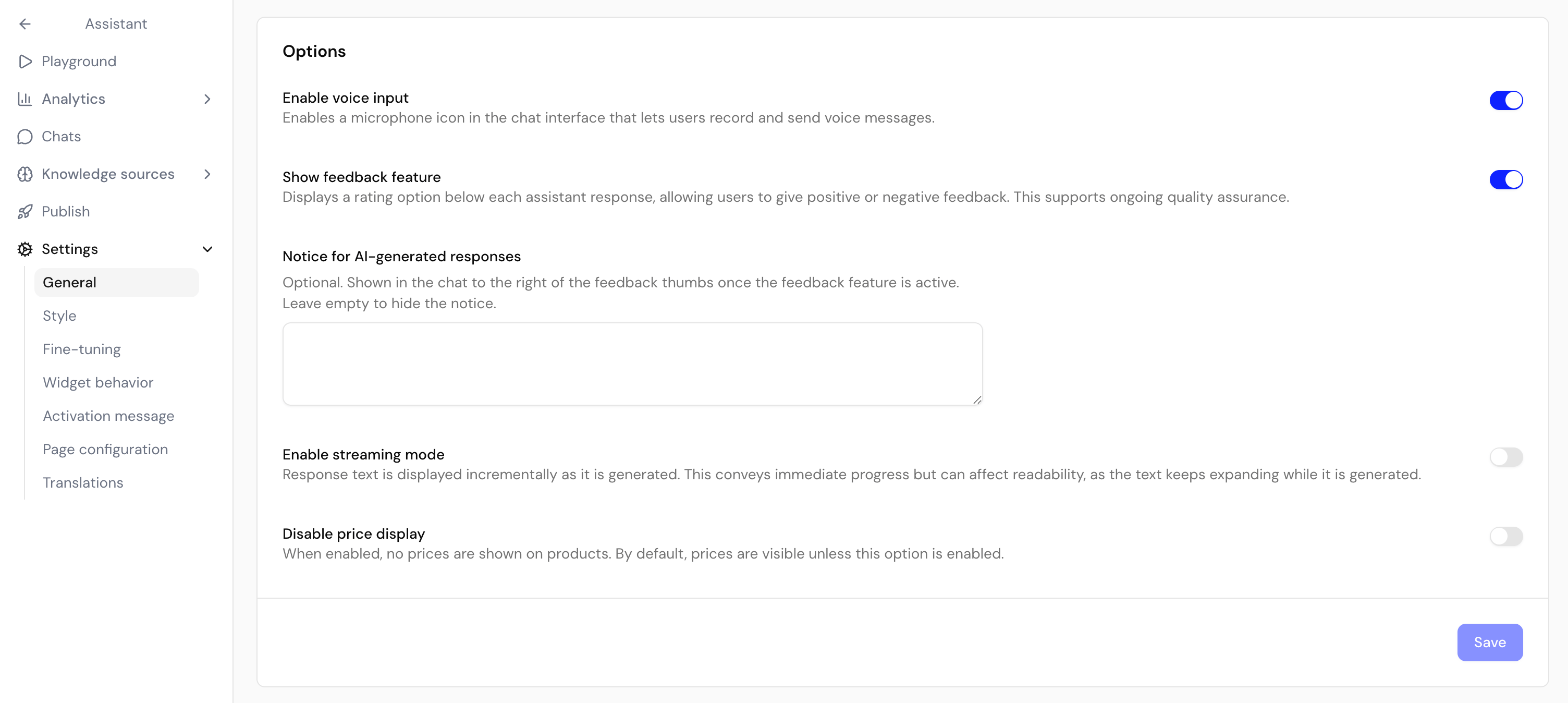
The **Options** card holds additional toggles, such as showing the feedback feature, enabling voice input, enabling streaming mode, hiding price display, and disabling branding.
Conversion tracking is also configured here for non-Shopify stores. See [Conversion tracking](/en/user-guide/assistants/conversion-tracking) for the full setup.
## Next steps
Measure which conversations lead to purchases.
Match the chat interface and launcher to your brand.
## Name
Give the assistant a clear internal name so you can recognize it across the platform.
## Activation
Switch the assistant **Active** to serve it on your store, or **Inactive** to take it offline without deleting it.
## Default language
Pick the language the assistant uses when it cannot detect the visitor's language. This also seeds your translatable interface strings.
## Security
Under **Security**, choose whether to keep the assistant **private** (available only in the Playground) or **protect it with a login** so only signed-in users can access it.
## Options
The **Options** card holds additional toggles, such as showing the feedback feature, enabling voice input, enabling streaming mode, hiding price display, and disabling branding.
Conversion tracking is also configured here for non-Shopify stores. See [Conversion tracking](/en/user-guide/assistants/conversion-tracking) for the full setup.
## Next steps
Measure which conversations lead to purchases.
Match the chat interface and launcher to your brand.