> ## Documentation Index
> Fetch the complete documentation index at: https://docs.yourhomie.ai/llms.txt
> Use this file to discover all available pages before exploring further.
# Activation message
> Invite visitors to chat with a proactive bubble triggered by scroll depth or time on page.
The Activation message is a bubble that appears before a visitor opens the chat, nudging them to start a conversation. You can trigger it by how far the visitor scrolls or how long they stay on the page.
## Set up the Activation message
Go to **Assistants** in the [homie platform](https://app.yourhomie.ai), select your assistant, and open **Settings → Activation message**.
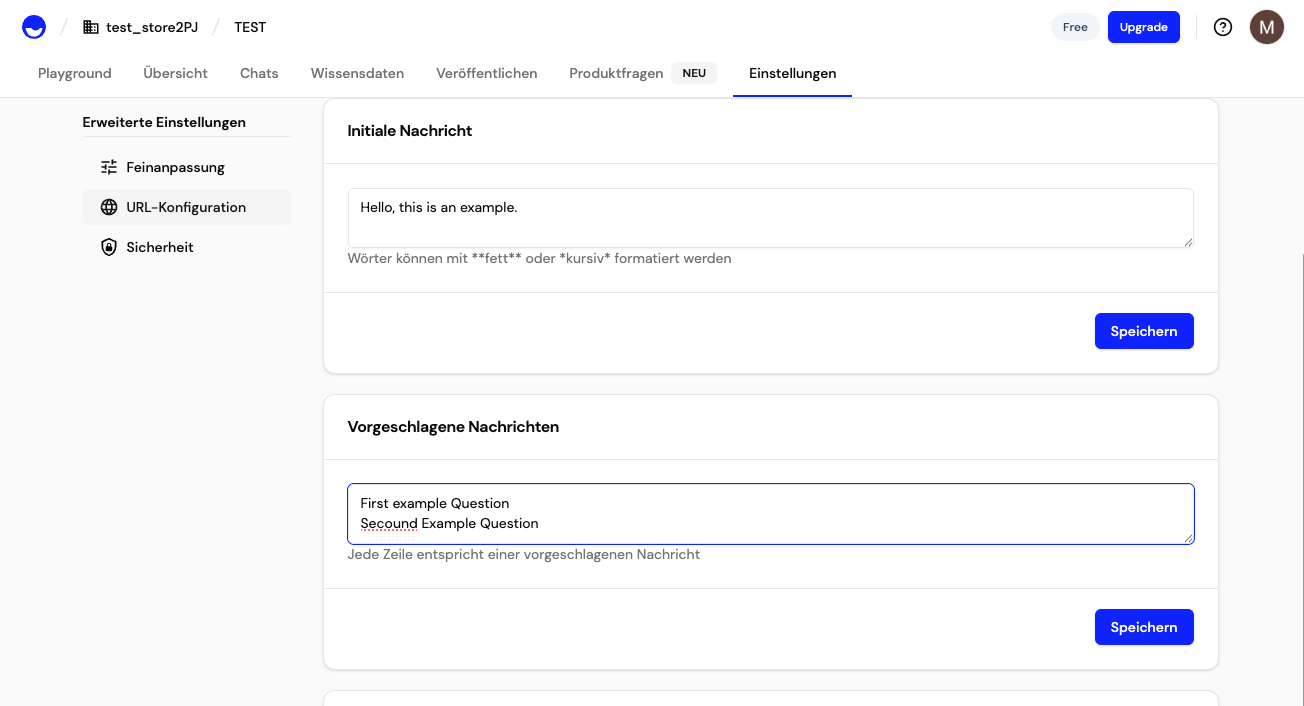
Enter the text shown in the activation message before the chat opens.
Optionally add **reply suggestions** — one per line — that visitors can tap to start the conversation with a specific question.
Set the **Type** to **Scroll depth** (a percentage of the page) or **Time on page** (a number of seconds), then set the **Threshold** that fires it.
Optionally add a **Delay** before the bubble shows, and a **Repeat after** time that defines how long to wait before showing it again, so it does not feel intrusive. Toggle **Active** to enable it.
 ## Trigger options
| Trigger | Fires when |
| ---------------- | ---------------------------------------------------------- |
| **Scroll depth** | The visitor scrolls past a set percentage of the page. |
| **Time on page** | The visitor stays on the page for a set number of seconds. |
Use reply suggestions to give visitors an easy first step — for example "Need help choosing?" or "Track my order". A short **Repeat after** time keeps the bubble helpful, not annoying.
## Next steps
Control how the widget is displayed and layered on the page.
Set page-specific activation messages and hide the widget where needed.
## Trigger options
| Trigger | Fires when |
| ---------------- | ---------------------------------------------------------- |
| **Scroll depth** | The visitor scrolls past a set percentage of the page. |
| **Time on page** | The visitor stays on the page for a set number of seconds. |
Use reply suggestions to give visitors an easy first step — for example "Need help choosing?" or "Track my order". A short **Repeat after** time keeps the bubble helpful, not annoying.
## Next steps
Control how the widget is displayed and layered on the page.
Set page-specific activation messages and hide the widget where needed.